Misc
AirTable
Wow wow wow AirTable continues to impress.
Formula Things
Formulas in AirTable are Excel / Google Sheets adjacent, but the syntax is a bit different.
Here’s a conditional IF to apply contingency to a line item:
IF({CONT} = BLANK(),0,SUM(ESTIMATE*.2))
“CONT” is field name
“BLANK” is if the box is checked
Here’s a conditional SWITCH to apply different contingency numbers on a line item:
SWITCH(
{CONT},
  "Buffer", SUM(ESTIMATE*.2),
  "Something", SUM(ESTIMATE*.22),
  "None", 0
)
Here’s a conditional IF
IF(
  {Watts/Unit} = 0,0,
  SUM(({Watts/Unit}/{Volts/Unit})*IF(OR(Calc = "R&D",Spare = 1),0,Qty)))
It’s saying if watts are filled out, complete the formula to calculate for Amps, then multiply by quantity to get the calculated Amps unless it is a spare unit or it’s used for R&D.
A further change:
IF({Watts/Unit} = 0,0,SUM({Watts/Unit}/SWITCH(
Volts,
"110v",110,
"208v",208)
)
*IF(OR({Budget Calc} = "R&D",Spare = 1),0,Qty)
)
Adding this switch makes the Volts column attached to a variable switch. Based on voltage selection, calculate amps. If I add in additional voltage options, I will need to manually create that switch in the Volts column and then add it to the script.
Here’s a formula that will concat two date strings
DATETIME_FORMAT({Start Day / Time}, 'ddd') & " - " &
DATETIME_FORMAT({Start Day / Time}, 'MMM') & " " &
DATETIME_FORMAT({Start Day / Time}, 'DD') & " From " &
DATETIME_FORMAT({Start Day / Time}, 'hh:mm') & " to " &
DATETIME_FORMAT({End Date / Time}, 'LT')
Extensions
You can install extensions that do a variety of things. Some are paid if by third-party. Can recommend “Page Designer” (buggy, but functional) and “Charts.
Third-Party Tools
DocsAutomator - Highly recommended tool that takes the concept of AirTable's Page Designer and makes it... good. Really good. This is a paid tool, but the capabilities it adds are great. There's a bit of learning curve.
PDF Hell
Editing a PDF
If you need to edit a PDF, you can manually add text, remove text, or move elements around using the edit tools in Adobe Acrobat. This is useful for filling out forms, adding signatures to documents, etc.
Editing a Locked PDF
These CAD PDFs from the manufacturer won’t let me import them into Vectorworks or some document from my employer that I need to fill out won’t let me add text to fill it out
If you need to edit a PDF that won’t let you because it’s locked, if you “print” it via Apple Preview and then save to PDF, the document’s locks go away. Congratulations, you’ve just gotten around one of the easiest-to-manipulate document-integrity flaws you can imagine.
Reducing the Size of a PDF
|
You just exported an awesome deck from Keynote or InDesign or even Google Slides and you want to email it to a client but it’s too-damn-big?
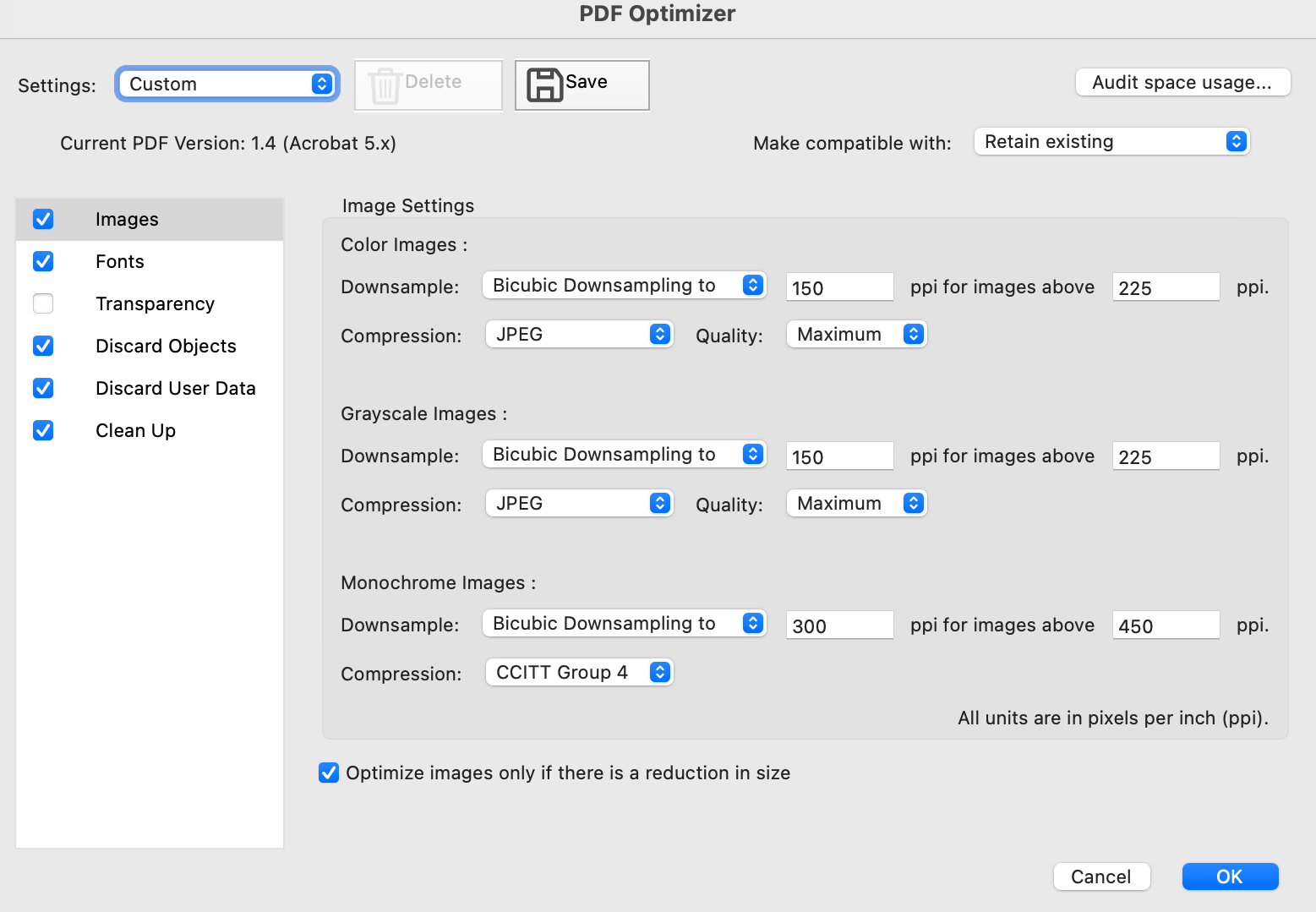
If you have a PDF that is huge because of the images within it, you can optimize the PDF with Adobe Acrobat. Do not use the option called “Reduce” because it compresses the images down to low quality and they’re all yucky and blocky. The move is to select File→Save As Other→Optimized PDF
The secret sauce here is in tweaking the quality and downsampling PPI. The screenshot is a good formula. 110MB PDF becomes 4MB. Congratulations, Dad! |
|
Screen Sharing
Definitely recommend ConnectWise’s ScreenConnect most. TeamViewer is good, too, as it allows for local use (VNC without www). Parsec is good for low latency things like editing or gaming. JumpDesktop is even better for editing and “virtual” displays. You can also share a screen via iMessage on a mac desktop, this is especially good for Family Tech Support™.
On a local network, you can screen share from Mac to Mac directly via the Screen Sharing utility. It is fantastic. RIP Back To My Mac.
ScreenConnect allows you to create a branded client application, send commands to a computer without logging in, and has ‘backstage’ mode which gives you access to a few select system resources without the host display seeing things.
ScreenConnect has a max count of screens, but allows for Mosaic (odd resolutions). Parsec seems to have a higher max screen count, but does not allow for odd resolutions. In other words, you might need Parsec to set up a multi-display server, but once a Mosaic is set up, you want to use ScreenConnect. There’s also a bug where certain configs on Hosts do not work on Mac clients.
Parsec Specific Gotchas
Incredibly convoluted setup process.
Once you have an account all set up and you want access from your client:
- Download and install Parsec on target (host) computer
- Click “Setup as Team Computer”
- Input your Team ID (from Parsec dashboard online, top left)
- Input your Secret Key (provided when you first setup Parsec, I reco putting this as a note in your Parsec 1Pass)
- In the Dash, assign the computer to a group (first create a group)
- Now reload the Parsec App on your receiving machine
Ripping
Ethical Consideration
I know, it’s 2023 2025, and ripping continues to be “not a cool thing” to do. That said, sometimes you need to rip something from another source program for sampling or auditing purposes or your client is being annoying about giving you exports and you needed the assets yesterday. There are definitely ethical reasons you may need to rip audio and video, so here’s my write up and suggestions.
Audio Ripping
I recommend Audio HiJack, it allows you to rip audio from a specific application (or system wide), and you can set rules to “start a new file after .5 seconds of silence,” for example.
If you can’t rip internally for some reason, you can do the old play from one source, record on another device trick. Another computer. A Zoom H5. Whatever.
If you want to automatically name audio tracks, use MusicBrainz. This application goes through your file and checks it against a massive online library. It will automatically name if it’s a clear winner. If there are options, it will give you a choice. It’s using the same technology iTunes used when you went to rip a CD into Mp3s in 2002.
Video Ripping
You used to be able to just screen record, but you can’t anymore. Workarounds include installing NDi or Spout/Syphon tools that allow you to send from a browser window, then you can just record that NDi or Spout/Syphon stream.
If you can’t do that, or the frame rate is trash, you’ll need to use a capture card on a secondary device - where you output a computer’s video and input it to a capture card on another computer or recording device. Black Magic recorder is a good example.
If you can’t do that, get a nice and clean matte screen that is high resolution, set up a tripod, match the frame rate (ish) and match the refresh rate with your shutter speed and shutter angle.
For ripping something like youtube, you can always dig around for gross downloaders, but search no further than Youtube-DL which allows you to download (some) Youtube URLs. There is a bit of a learning curve and you have to do it through terminal, but if you are familiar with a tool like FFMPEG, this will feel easy for ya.
Youtube-DL & Cheat Sheet
Youtube-DL doesn’t always work and is sometimes left for periods of time where it’s not updated, check out other versions – like ytdl-org
yt-dlp uses the same syntax as youtube-dl
Installing yt-dlp via homebrow
brew install --formula yt-dlpUsing ytdl, here's a sample syntax to download the best available MP4
yt-dlp -f mp4 'url'