Camera Specific
Fuji Nuances
Here are some nuances for the X line that I’ve put here for future reference.
Firmware Updates
For lenses, you need to have the lens attached and update using an SD card. Instructions here. For camera body, you can use either the older Fujimfilm Cam Remote application (iOS), or the latest Fujifilm X application (iOS). The older one was really finicky, and I’ve read the new one isn’t much better. Sticking with Cam Remote for now! Devil you know, and all that.
Fujifilm X Acquire
You can backup all of your camera settings by using Fujifilm X Acquire. To do this, you need to set your camera’s connection mode to USB RAW CONV./BACKUP RESTORE. You have to do this manually. The automatic or universal setting will not allow you to run the Acquire tool. Still not working? Make sure your USB cable is for data. Cables that came to you as charging cables won’t work (unless it’s an Apple cable).
Fuji X with an External Monitor
HDMI Info Display - if on, will reduce output quality to HDMI. When you go to review the quality, it will correct but it means that the preview isn’t accurate. Turn HDMI info display off for correct color and focus with external monitor.
Peaking on the external monitor will make the video flicker when using some shutter speeds and light types. If you turn peaking off and/or change the SS, then it should go away.
Tethering
I wrote this bit in Feb 2022 using my XT3. I’m hoping and guessing this is easier to do now.
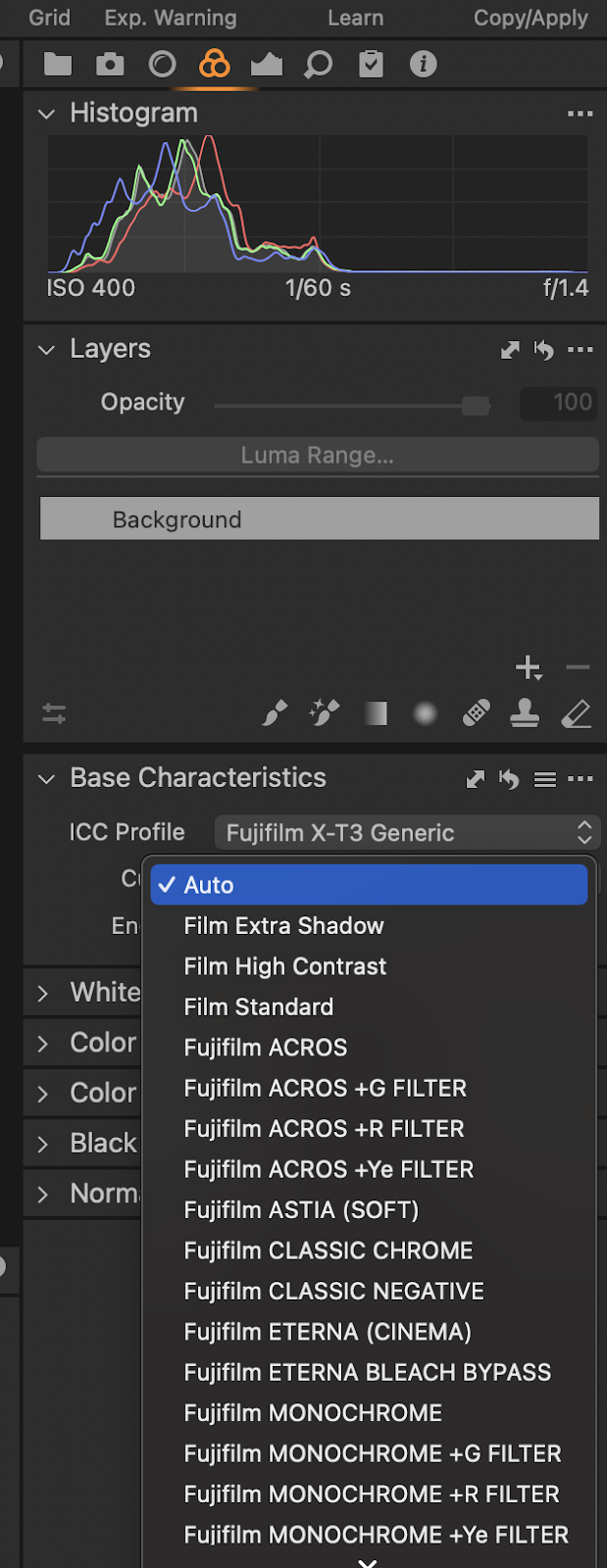 |
Tethering for Mac OS
To control camera within CaptureOne
To pick a color setting, see still at left.
Doesn’t work?
While in Capture One’s LIVE mode, it will not allow you to access the MENU from the camera. Close live mode, now you can access the menu.
Maybe try the Fuji plugin for Adobe? Would prefer Lightroom because I already own it. Costs money. bummer. |
XT3 Chaos
Fujifilm XT3’s Shutter Speed is suddenly jumping around – this indicates that the dial is maybe broken? Seems to be consistent on XT3’s where the internal battery is toast. If you switch Shutter dial to T and then control shutter with the front command dial, the camera will be functional (albeit not ideally).