# Google Drive

# Google Drive Use-Cases and Speed Test

There are four ways you can use Google Drive –

1. Via a Browser
2. Via a local synchronized directory using **Drive for Desktop** (<span style="text-decoration: underline;">**DFD**</span>) on a "normal" operating system (Mac OS / Windows)
3. Via a plugin within a NAS operating system (like "Cloud Sync" on a Synology NAS).
4. Via a tool like [FreeFileSync](http://tech-almanac.org/books/cloud-file-systems/page/overview "Overview")

Google Drive via browser is fantastic. No complaints. it takes a lot of time to manage manual uploads vs. a mirrored, synchronized folder.

Google Drive is a good place for dead files aka archive and for Google documents (sheets, docs, slides).

#### Shared Folders vs Shared Drives

Traditionally shared Google Drive folders don’t work as a sync-able local directory solution. Instead, it creates a shortcut that’s cached and that you can’t locally modify. You have to use a "Shared Drive" which functions like a shared Dropbox™ folder.

#### Active File Synchronization Issues

As of 2025, local instances of Google Drive (eg **Drive for Desktop**) does a pretty good job with simple files as long as you have a fast ISP.

For more complex or larger files, the story is a bit more... complicated. For Production work, you cannot rely on Google Drive for Desktop for active synchronization (EG constantly saving a Photoshop file). They haven't figured out the secret sauce that Dropbox mastered over 10 years ago.

[See the dedicated write up here](http://tech-almanac.org/books/cloud-file-systems/page/active-file-directory-sync-issues "Active File Directory Sync Issues").

#### Drive for Desktop Speed Test

65GB folder on 1GB line.

Should take ~22-24 mins if line isn’t congested.

Started upload (after confirmed copy) at 10:47AM - no speed or ETA using the app.

Finished download 11am. ✅ – Only 13 minutes. ~683Mb/s or 85.38 MB/s. Pretty good.

This folder was multiple files, which may have been a performance positive as simultaneous file uploading processes faster than 1 file that is the same size.

#### Google Drive on NAS

(Like a Synology) Works great, just don’t put active project files on there.

#### Google Drive on an External Drive  


I don’t know if this is a good long-term solution as it’s untested, but I have tested it to download a 1.5TB disk image and it seems to work great for those kinds of use cases.

While you can’t have your root Google Drive on an external drive, you can sync a folder from “My Computer” which can come from anywhere. If you need to get a massive set of files from Google Drive directly to an external:

- Create a folder on your external drive.
- Open up Google Drive Preferences locally on your computer.
- Select the “My Computer”
- Select “Add Folder”
- Select your newly created folder.
- Navigate to your Google Drive in browser.
- Find the files you need and move, or copy them, to this newly created folder. Obviously moving, rather than copying, would mean that the files disappear for anyone who is shared into that folder, so proceed with caution. You can move directories, and you can copy files, but you can’t copy directories (at least in browser).
- Wait for the files to download

# Active File Directory Sync Issues

<p class="callout danger">**Google Drive For Desktop** can’t (consistently) be used as an “active” file system</p>

All kinds of files don’t sync or bug out regardless of any of the tested variables below. Sometimes they eventually sync. Sometimes they never sync unless I do a re-installation. Sometimes files don’t download. Sometimes files don’t upload. Sometimes the application reports up-to-date but is decidedly-not-up-to-date. This is a well documented problem even though the file types are officially supported.

For the layperson: it means they could be working in the drive and think they’ve backed up all their files, but Google Drive is lying to you and being verrrrry naughty.

A use case of this is: CAD (Vectorworks etc) - we can’t use Google Drive for active file sharing.

Sometimes files disappear from your very eyes instead of uploading!

<table border="1" id="bkmrk-despite-being-offici" style="border-collapse: collapse; width: 100%;"><colgroup><col style="width: 50%;"></col><col style="width: 50%;"></col></colgroup><tbody><tr><td>Despite being officially supported →

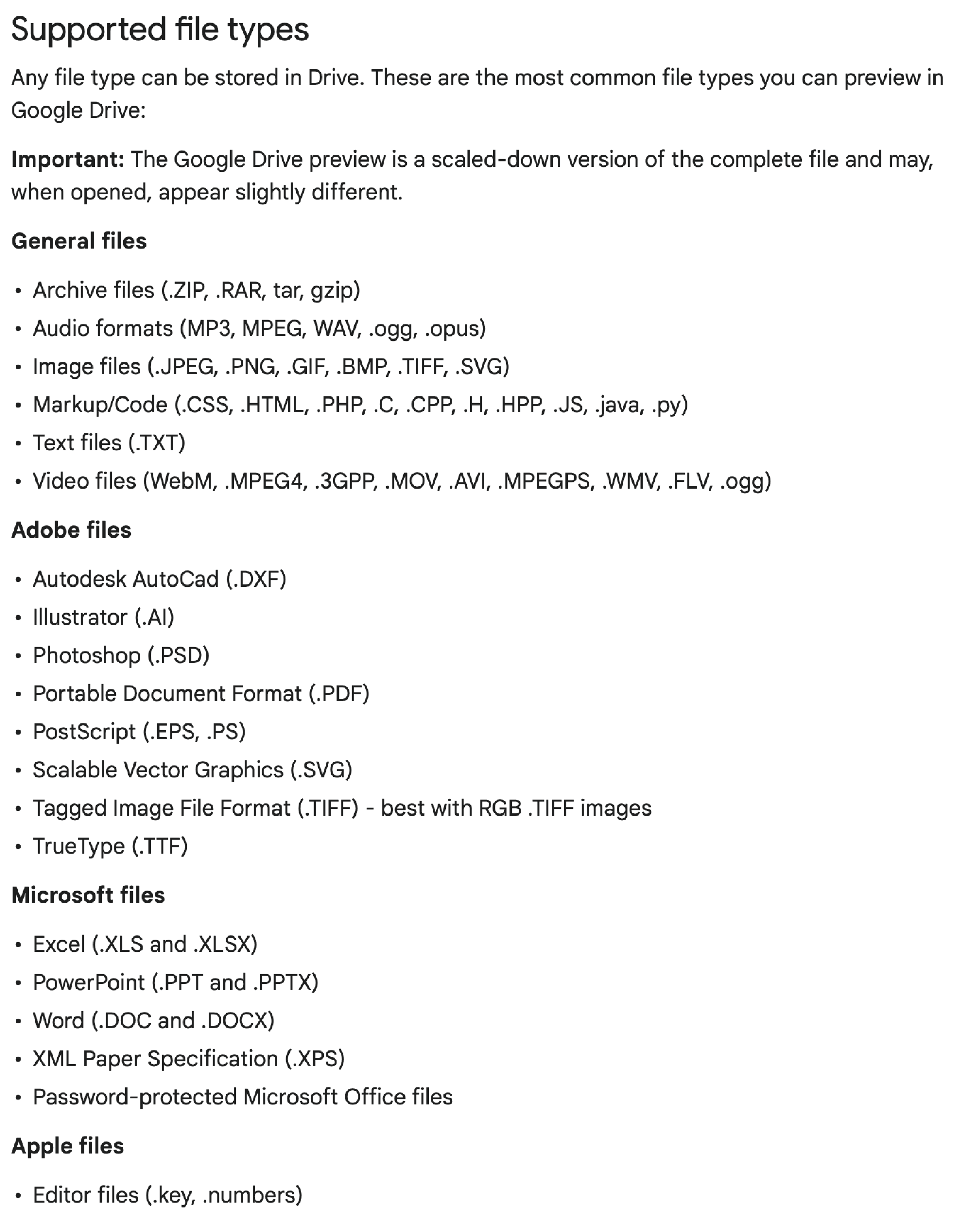
Here are some file-types that Google Drive can’t consistently handle with reliability:

- Project File Types: vwx .psd .ae .ai .pr .id .c4d
- 3D File Types: .obj .mtl .3ds .fbx
- Media File Types: .mov .mp4 .wav

Here are some other variables that I've tested:

- **Operating Systems:** Mac OS 12/13/14 + Windows 10/11  
    Intel, AMD, and Apple Silicone
- **ISPS**: Via Comcast, Pilot, Fios, Optimum and AT&amp;T
- **Drives**: 5400/7200, 2.5” SSDs, M2 drives
- **RAID**: 0/1/5 Configurations
- **FileSystems**: HFS, APFS, ExFAT, NTFS
- **File Sizes**: all of them

</td><td>[![image.png](http://tech-almanac.org/uploads/images/gallery/2025-04/scaled-1680-/qj0image.png)](http://tech-almanac.org/uploads/images/gallery/2025-04/qj0image.png)

</td></tr></tbody></table>

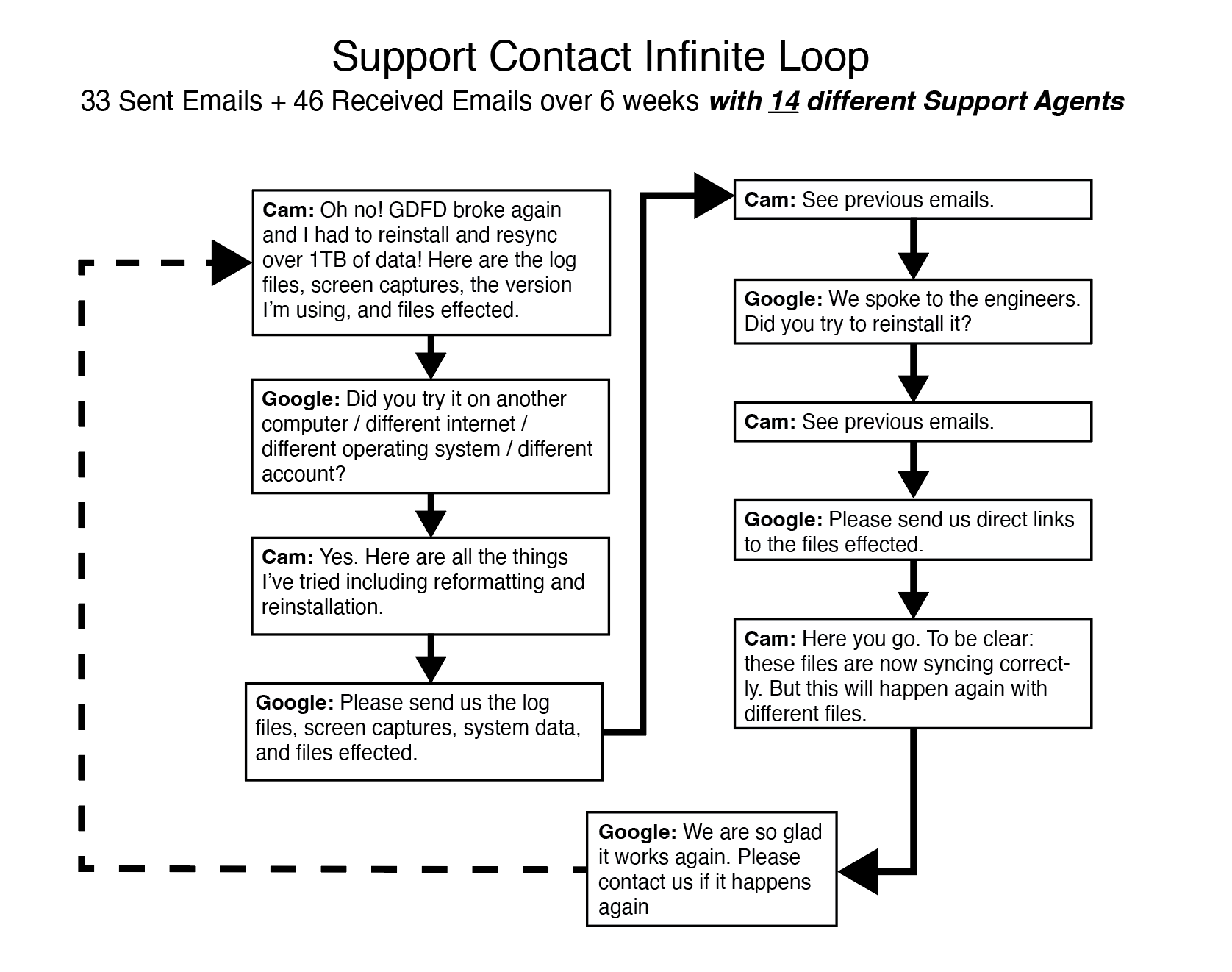
Since otherwise, Google DFD is a fantastic product (sincerely), I tried over many months to get it addressed with Google's support team (I made this graphic like half-way through). I post this here as posterity for anyone else who dares take the challenge.

<p class="callout info">TLDR : I eventually gave up and now I just accept that when Google Drive borks, it's easier to delete the local version, re-install and start over once again (and waste the bandwidth).</p>

[![image.png](http://tech-almanac.org/uploads/images/gallery/2025-04/scaled-1680-/Nohimage.png)](http://tech-almanac.org/uploads/images/gallery/2025-04/Nohimage.png)

# Google Drive Troubleshooting & Tips

<p class="callout warning">All of these solutions are for Mac OS, but I'm sure that the solutions to solve these problems are essentially the same on Windows.   
</p>

### Audit File Footprint for Google Drive Folder

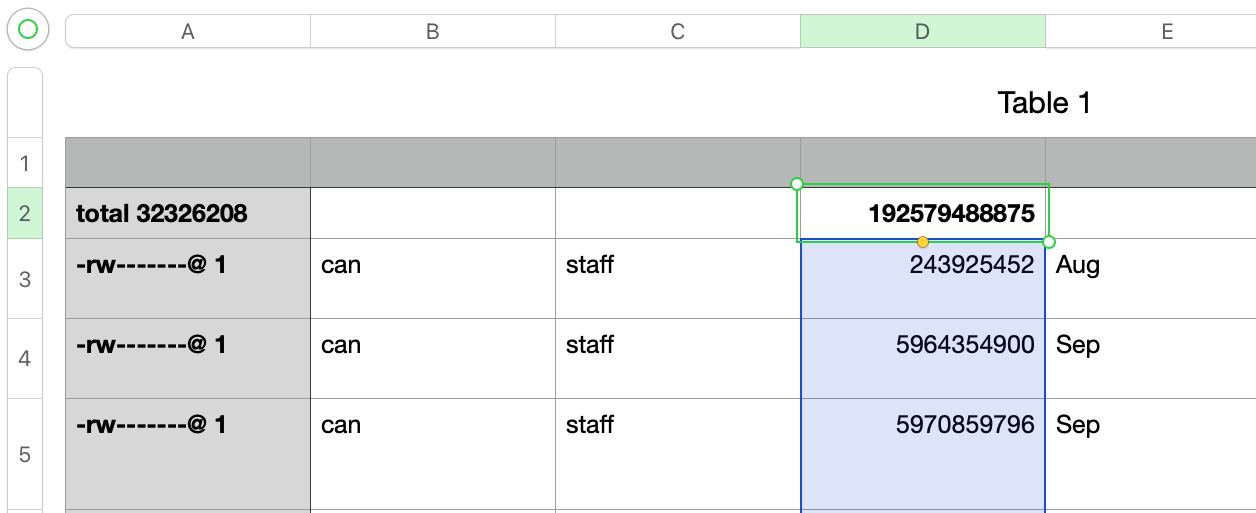
Auditing a google drive folder’s total space without downloading.

Note that you cannot audit folders within folders without manually adding up the lowest hierarchy folders first, so this only works at the most-child level. I'm sure someone has figured out a better way to do this by now...

CD the directory locally using Terminal, then ` ls -l > ~/Desktop/list.txt`

Copy data from that brand new list.txt file to a spreadsheet and =Sum up the random numbers - in the example below, the total was 192.58GB !

[![Google-DFD-Footprint.png](http://tech-almanac.org/uploads/images/gallery/2025-04/scaled-1680-/google-dfd-footprint.png)](http://tech-almanac.org/uploads/images/gallery/2025-04/google-dfd-footprint.png)
### Google Drive Stuck on “Fetching New Changes”  


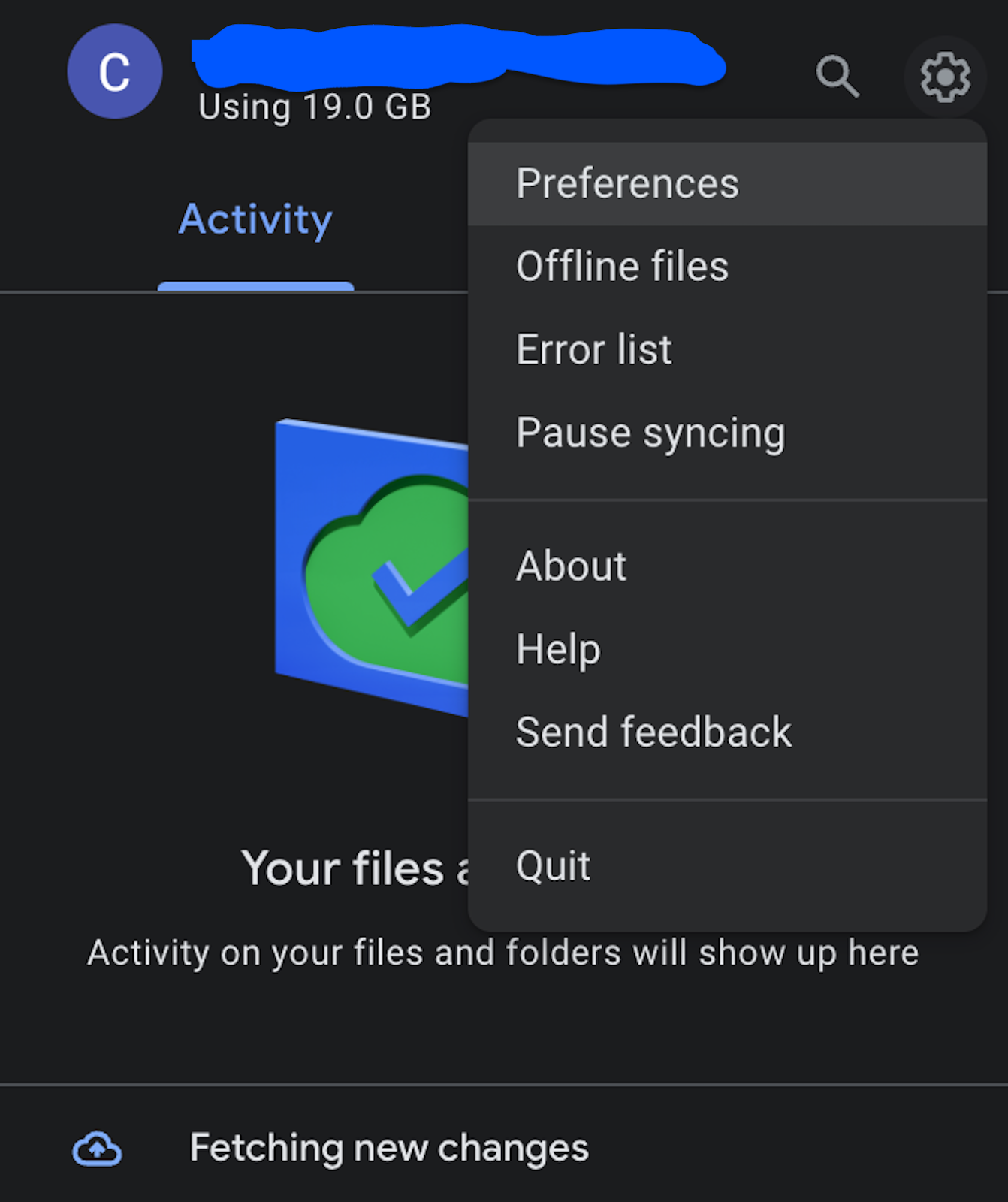
<table border="1" id="bkmrk-this-is-the-most-inf" style="border-collapse: collapse; width: 100%; border-width: 0px;"><colgroup><col style="width: 58.5714%;"></col><col style="width: 2.14286%;"></col><col style="width: 39.2857%;"></col></colgroup><tbody><tr><td style="border-width: 0px; padding: 0px;">So, it gets hung on “Fetching New Changes” while simultaneously reporting “Files Up To Date”.

You used to be able to sever the account and reinstall, but now when you go to disconnect it’s hung on the same “Fetching New Changes” bug.

This happens to me every few months and every time it requires a new solve.

<p class="callout warning">Be sure you have copies of files elsewhere, (if they are in xFer purgatory).</p>

The latest (April 2024) solve was:

- If you can, wait 24 hours and leave computer on and connected to the internet. If you can't do that or it doesn't work:
- Click the little gear
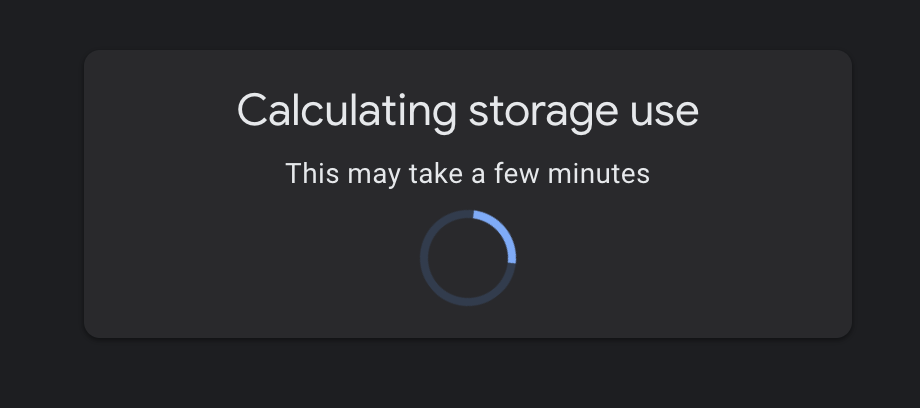
- Click offline files – wait for “Calculating Storage use this may take a few minutes”

[![Google-Fetch-Bug-02.png](http://tech-almanac.org/uploads/images/gallery/2025-04/scaled-1680-/8tUgoogle-fetch-bug-02.png)](http://tech-almanac.org/uploads/images/gallery/2025-04/8tUgoogle-fetch-bug-02.png)
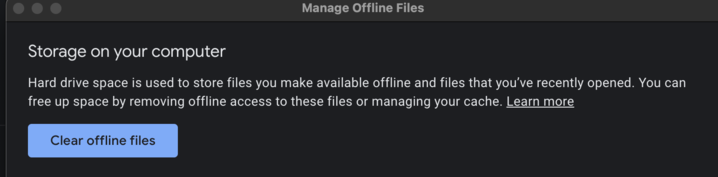
- Click Clear Offline Files

[![Google-Fetch-Bug-03.png](http://tech-almanac.org/uploads/images/gallery/2025-04/scaled-1680-/google-fetch-bug-03.png)](http://tech-almanac.org/uploads/images/gallery/2025-04/google-fetch-bug-03.png)
- Restart Google Drive
- Restart Computer
- Wait until the Google Drive icon stops updating (2-3 hours for me)
- Back to normal, though you will need to re-download everything you want to keep locally sync'd

</td><td style="border-width: 0px; padding: 0px;"></td><td style="border-width: 0px; padding: 0px;">[![Google-Fetch-Bug-01.png](http://tech-almanac.org/uploads/images/gallery/2025-04/scaled-1680-/g9dgoogle-fetch-bug-01.png)](http://tech-almanac.org/uploads/images/gallery/2025-04/g9dgoogle-fetch-bug-01.png)

</td></tr></tbody></table>

### Google Drive For Desktop is Completely Borked

When Google Drive becomes hung or unresponsive for days on a single machine, and the troubleshooting steps above don’t work, you can attempt a manual uninstall.

<p class="callout warning">Proceed at your own risk! Be sure you have copies of files elsewhere, (if they are in xFer purgatory).</p>

- If you can, wait 24 hours and leave computer on and connected to the internet. If you can't do that, or it doesn't work:
- If possible, try to disconnect the account in DFD preferences. If that doesn’t work:
- Disable auto-login within DFD prefs and within system level prefs (“login items”)
- Try to quit the app the right way.
- Try to eject the drive the right way.
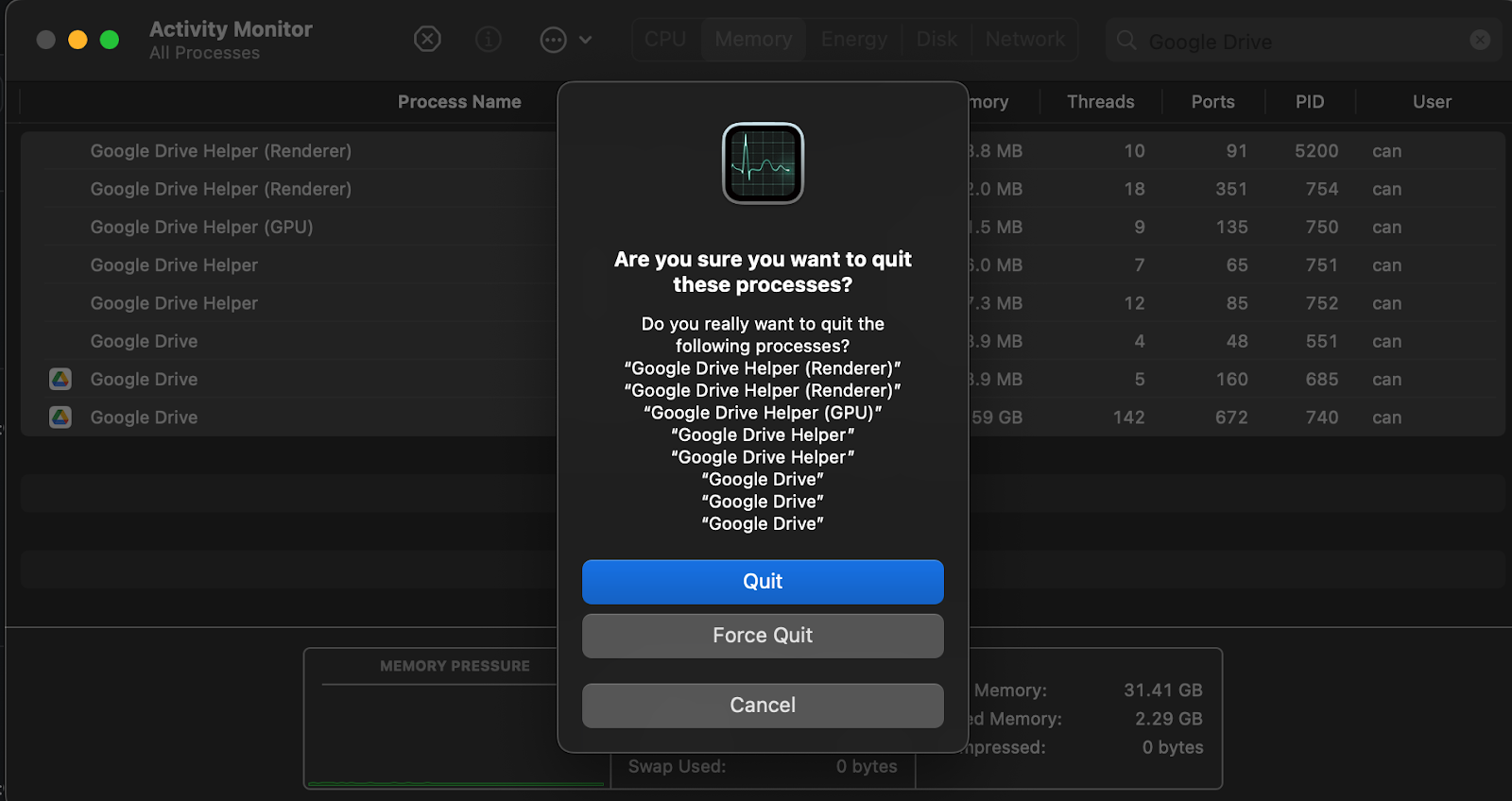
- Force Quit all DFD processes via task manager/activity monitor.

[![Google-Bork-02.png](http://tech-almanac.org/uploads/images/gallery/2025-04/scaled-1680-/google-bork-02.png)](http://tech-almanac.org/uploads/images/gallery/2025-04/google-bork-02.png)
- Delete the DriveFS folder in */Users/**yourusername**/Library/Application\\ Support/Google/DriveFS*
- Delete the DFD preferences found in */Users/**yourusername**/Library/Preferences/*
- Delete the Cache found in ***/Users/yourusername/Library/CloudStorage/*** (folder to delete has the prefix "GoogleDrive"
- If DFD isn’t running, delete it.
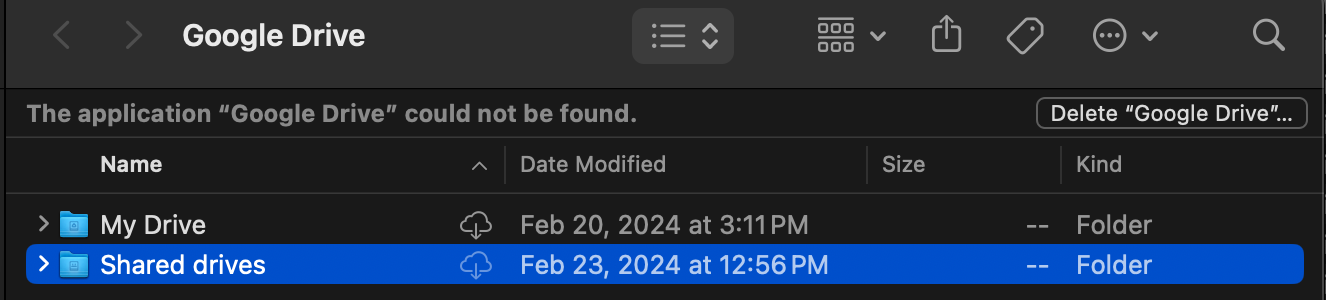
- Navigate to the cloud storage for Google Drive (this is your local google drive cache), it will say something like “the application ‘Google Drive’ could not be found” – click the delete just to the right.

[![Google-Bork-03.png](http://tech-almanac.org/uploads/images/gallery/2025-04/scaled-1680-/OPrgoogle-bork-03.png)](http://tech-almanac.org/uploads/images/gallery/2025-04/OPrgoogle-bork-03.png)
- Watch your computer’s free space go up.
- Run software update on the OS just in case.
- Restart.
- Reinstall Google Drive.