Cloud File Systems
Dropbox, Google Drive, Box, etc
Overview
Cloud file systems are remote storage solutions like Dropbox, Box, Google Drive, iCloud Drive, etc. Most folks use Dropbox and/or Google Drive so most of the intel here leans in that direction.
In general “this cloud system always deletes my files/has problems” is due to user error. Learn how to use it, follow an SOP, and you’re good. I’ve been using Dropbox PRO and Dropbox TEAMS for a very long time and the only time I’ve had deleted files is due to operator error.
I lean Dropbox because it does way better at active file syncing. Never had an issue syncing Photoshop files. Google Drive has a lot of issues there. That said, Dropbox is limited, no matter what plan, to 350GB per single-file, whereas, Google Drive is limited to 5TB per single-file. This makes GDrive the clear winner for backing up things like hard drive / system clones, and other huge disk images.
Transfers and Transfer Speeds
Transferring files via Cloud File Systems are more reliable and perform much better when used with a desktop sync application, eg installing Google Drive for Desktop or Dropbox to a computer. Those same files transferred in browser do so at slower speeds and larger files or file sets have a tendency to crash if the xFer takes too long.
I’ve bench-marked these speeds on a number of connections, but my favorite is on fiber line! If you have a 1G connection or below, then you can use GDrive or Dropbox out-of-the-box and it will use a good chunk of your bandwidth.
When you want to go faster, things change
On a 5Gbe fiber connection (capable of ~500MB/s), Dropbox maxes out at about 75MB/s for both TX/RX. On that same fiber connection, Google maxes out at about 50MB/s for both TX/RX. This means that the bottleneck is Google and Dropbox servers and how they’ve configured file transfers. Optimized for 1G, it appears.
In order to get better speeds from Google Drive, you can use a tool like FreeFileSync (thank you Dylan Steenkamp), which is donation-ware that makes sync processes more efficient and you can tweak the settings for simultaneous processes. When properly tuned (very easy), I was able to get a sustained speed of 475MB/s for a total of 63GB (17 files). This xFer took 80 seconds. Unbelievable. If I get even better results on a 10Gbe line, this would mean that the bottleneck is your ISP!
My bench test shows that this workflow does great with files that are <60GB each. With big files, the performance is terrible (like a single OS clone at 1.5TB). I’m not sure where the line is between 60GB and 1.5TB, but that higher footprint use case is much rarer.
I have not found a service that does this same xFer speed magic for Dropbox.
Dropbox
Dropbox Use-Cases & Speed Test
There are three ways you can use Dropbox –
- Via a Browser
- Via a local synchronized directory using Dropbox app on a "normal" operating system (Mac OS / Windows)
- Via a plugin within a NAS operating system (like "Cloud Sync" on a Synology NAS).
Dropbox excels at local synchronization.
Dropbox App Speed Test
55GB on 1GB line.
Should take <20 mins if line isn’t congested.
13 minutes so the upload speed was ~72 MB/s. ✅
It’s basically a wash for upload/download of files Google Drive vs Dropbox, especially given congestion variability.
Dropbox on NAS
(Like a Synology) Works great, just don’t put active project files on there.
Dropbox on an External Drive
OWC did an amazing write up of how to use an external hard drive as a Dropbox. It is here. I’ve done this on/off for years. Big warning: if the drive gets disconnected while dropbox is running, Dropbox will think you deleted your entire Dropbox. Thankfully, DB keeps a log of events and you can undo that event and then resync your drive. Once you realize this, you will be relieved, but it will take a lot of time. Since this has happened to me I recommend: setting it up to online only for everything, but sync your whole dropbox, then sync folders and files as you need them, and do the things that are less of a priority over the weekend.
Dropbox Troubleshooting & Tips
Re-Syncing a Drive
For moving an external hard drive Dropbox to a new computer without (re)downloading.
Dropbox has a guide for this here. But I've had to do this so many times that I've re-written it to be a bit more digestible.
Basically, on the new computer or in the new location that you want DropBox (DB) to put the newDB folder:
- Start a DropBox Sync from scratch to the new location, so that DB actually starts downloading all the online files to the new location.
- Pause the Sync, to stop the downloads.
- Copy your existing DB files into the new location (overwrite anything that was just downloaded).
- Resume Syncing - DB will first check the DB folder, be astounded to find all the files magically there, and proceed to only sync the latest updates, if any.
To clarify how to start a DB sync from scratch in a new location (for example, in the event of already having all the files on a hard drive but in a different location, like myself & the OP), I had to actually:
- Unlink my DropBox (Prefs>Account>Unlink).
- Re-Link it and point to the new desired location.
- Pause the Sync
- Move all the DB files from the old location onto the new location, overwriting anything already there.
- Resume Syncing
- In my case this worked perfectly, and DB was "up to date" after a short while.
Dropbox Not Showing Sync Icons / Mac
- Make sure Dropbox is allowed in Security + Privacy → Finder and → Accessibility
- Quit Creative Cloud, Google Drive, Sync, OneDrive
- Quit DropBox and relaunch it
Dropbox “MooV” Error
This is an error when After Effects or Premiere tries to load a file from a cloud service and the file exists in the directory, but it isn’t downloaded (eg “0 Bytes”).
- Make sure the file is downloaded and “offline”
- Make sure sync icons are good
- Make sure there isn’t some bugged cache thing happening, duplicate the file to the desktop and import from there. If it works, your file is bugged - dupe it and rename it in the directory you want it to be in. So annoying.
Google Drive
Google Drive Use-Cases and Speed Test
There are four ways you can use Google Drive –
- Via a Browser
- Via a local synchronized directory using Drive for Desktop (DFD) on a "normal" operating system (Mac OS / Windows)
- Via a plugin within a NAS operating system (like "Cloud Sync" on a Synology NAS).
- Via a tool like FreeFileSync
Google Drive via browser is fantastic. No complaints. it takes a lot of time to manage manual uploads vs. a mirrored, synchronized folder.
Google Drive is a good place for dead files aka archive and for Google documents (sheets, docs, slides).
Shared Folders vs Shared Drives
Active File Synchronization Issues
As of 2025, local instances of Google Drive (eg Drive for Desktop) does a pretty good job with simple files as long as you have a fast ISP.
For more complex or larger files, the story is a bit more... complicated. For Production work, you cannot rely on Google Drive for Desktop for active synchronization (EG constantly saving a Photoshop file). They haven't figured out the secret sauce that Dropbox mastered over 10 years ago.
See the dedicated write up here.
Drive for Desktop Speed Test
65GB folder on 1GB line.
Should take ~22-24 mins if line isn’t congested.
Started upload (after confirmed copy) at 10:47AM - no speed or ETA using the app.
Finished download 11am. ✅ – Only 13 minutes. ~683Mb/s or 85.38 MB/s. Pretty good.
This folder was multiple files, which may have been a performance positive as simultaneous file uploading processes faster than 1 file that is the same size.
Google Drive on NAS
(Like a Synology) Works great, just don’t put active project files on there.
Google Drive on an External Drive
I don’t know if this is a good long-term solution as it’s untested, but I have tested it to download a 1.5TB disk image and it seems to work great for those kinds of use cases.
While you can’t have your root Google Drive on an external drive, you can sync a folder from “My Computer” which can come from anywhere. If you need to get a massive set of files from Google Drive directly to an external:
- Create a folder on your external drive.
- Open up Google Drive Preferences locally on your computer.
- Select the “My Computer”
- Select “Add Folder”
- Select your newly created folder.
- Navigate to your Google Drive in browser.
- Find the files you need and move, or copy them, to this newly created folder. Obviously moving, rather than copying, would mean that the files disappear for anyone who is shared into that folder, so proceed with caution. You can move directories, and you can copy files, but you can’t copy directories (at least in browser).
- Wait for the files to download
Active File Directory Sync Issues
Google Drive For Desktop can’t (consistently) be used as an “active” file system
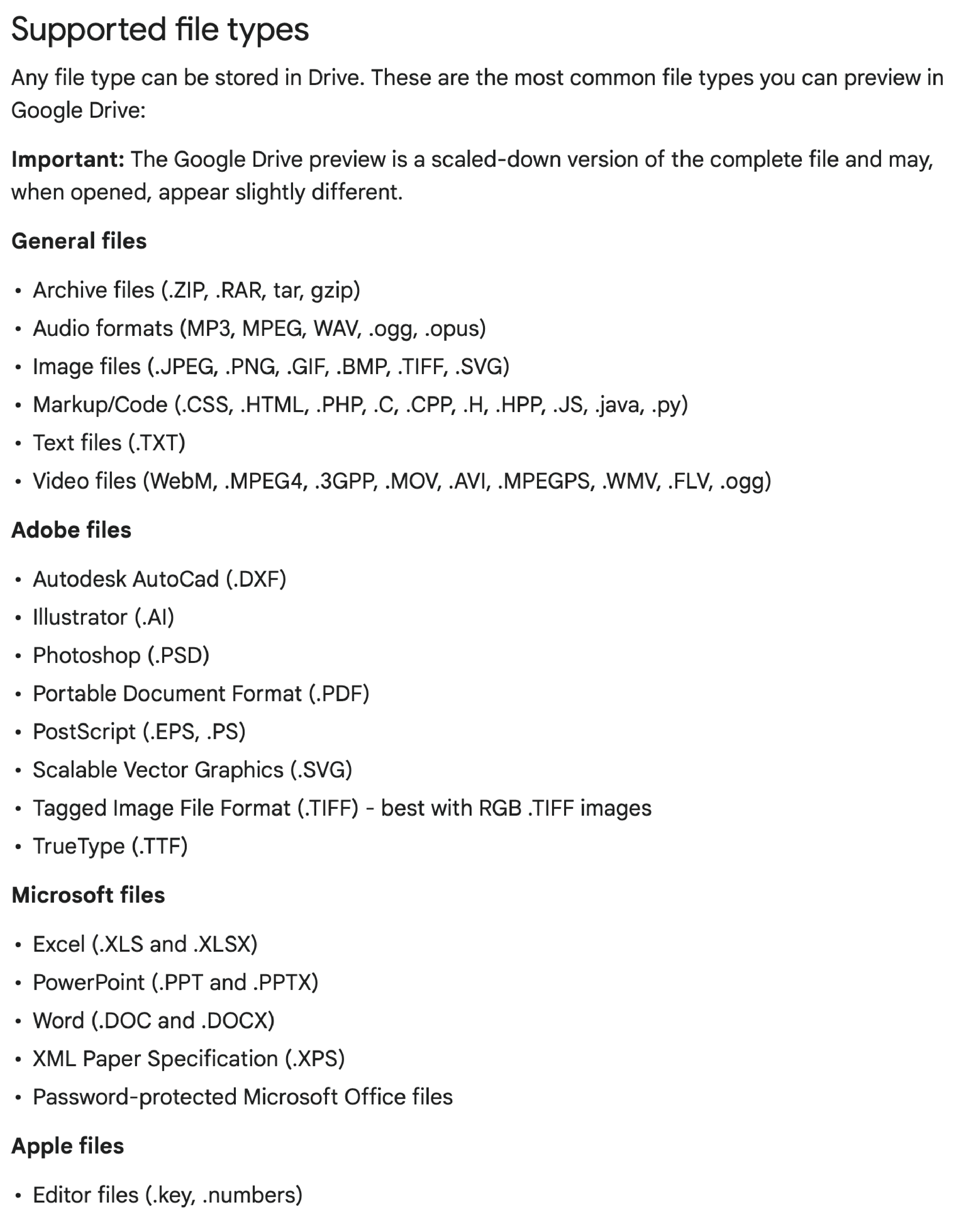
All kinds of files don’t sync or bug out regardless of any of the tested variables below. Sometimes they eventually sync. Sometimes they never sync unless I do a re-installation. Sometimes files don’t download. Sometimes files don’t upload. Sometimes the application reports up-to-date but is decidedly-not-up-to-date. This is a well documented problem even though the file types are officially supported.
For the layperson: it means they could be working in the drive and think they’ve backed up all their files, but Google Drive is lying to you and being verrrrry naughty.
A use case of this is: CAD (Vectorworks etc) - we can’t use Google Drive for active file sharing.
Sometimes files disappear from your very eyes instead of uploading!
|
Despite being officially supported →
Here are some file-types that Google Drive can’t consistently handle with reliability:
Here are some other variables that I've tested:
|
|
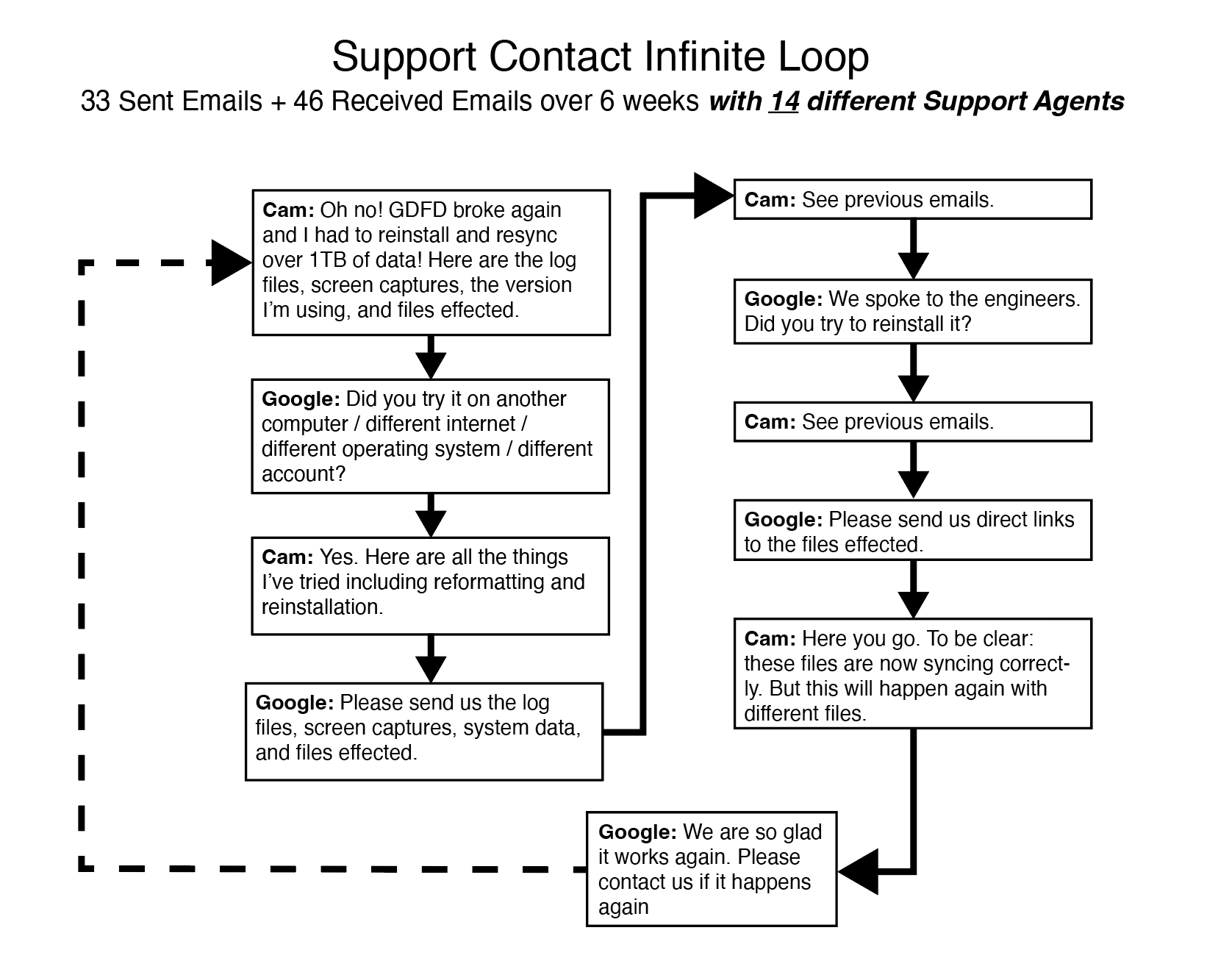
Since otherwise, Google DFD is a fantastic product (sincerely), I tried over many months to get it addressed with Google's support team (I made this graphic like half-way through). I post this here as posterity for anyone else who dares take the challenge.
TLDR : I eventually gave up and now I just accept that when Google Drive borks, it's easier to delete the local version, re-install and start over once again (and waste the bandwidth).
Google Drive Troubleshooting & Tips
All of these solutions are for Mac OS, but I'm sure that the solutions to solve these problems are essentially the same on Windows.
Audit File Footprint for Google Drive Folder
Auditing a google drive folder’s total space without downloading.
Note that you cannot audit folders within folders without manually adding up the lowest hierarchy folders first, so this only works at the most-child level. I'm sure someone has figured out a better way to do this by now...
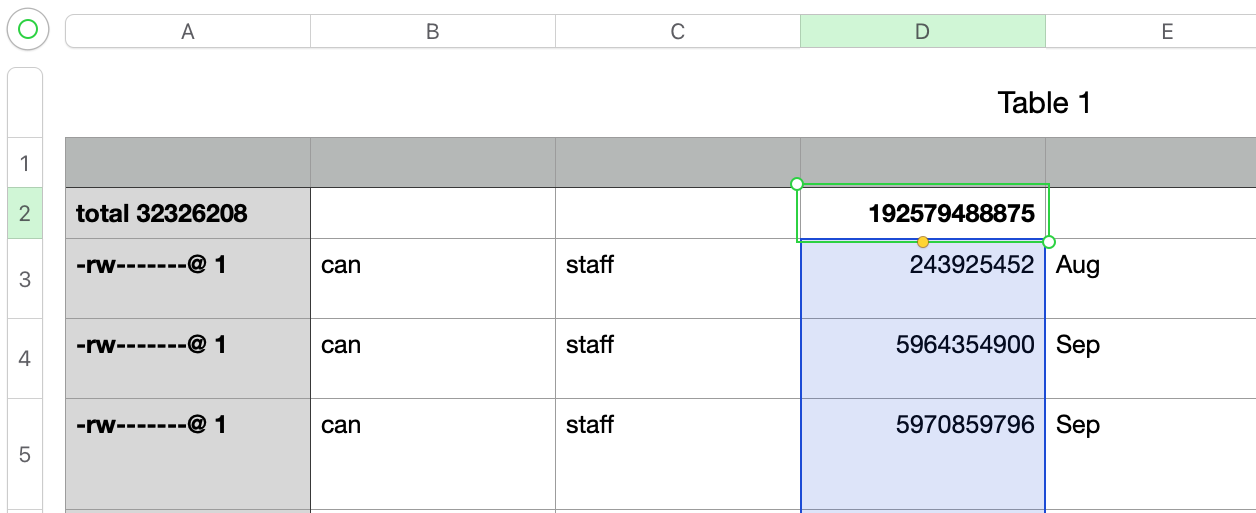
CD the directory locally using Terminal, then ls -l > ~/Desktop/list.txt
Copy data from that brand new list.txt file to a spreadsheet and =Sum up the random numbers - in the example below, the total was 192.58GB !
Google Drive Stuck on “Fetching New Changes”
|
So, it gets hung on “Fetching New Changes” while simultaneously reporting “Files Up To Date”.
You used to be able to sever the account and reinstall, but now when you go to disconnect it’s hung on the same “Fetching New Changes” bug.
This happens to me every few months and every time it requires a new solve.
Be sure you have copies of files elsewhere, (if they are in xFer purgatory).
The latest (April 2024) solve was:
|
|
|
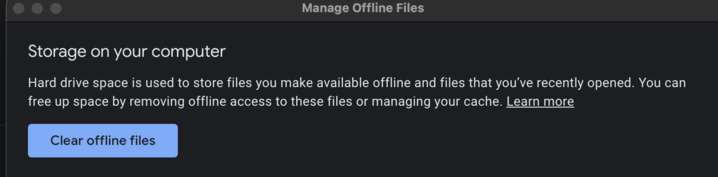
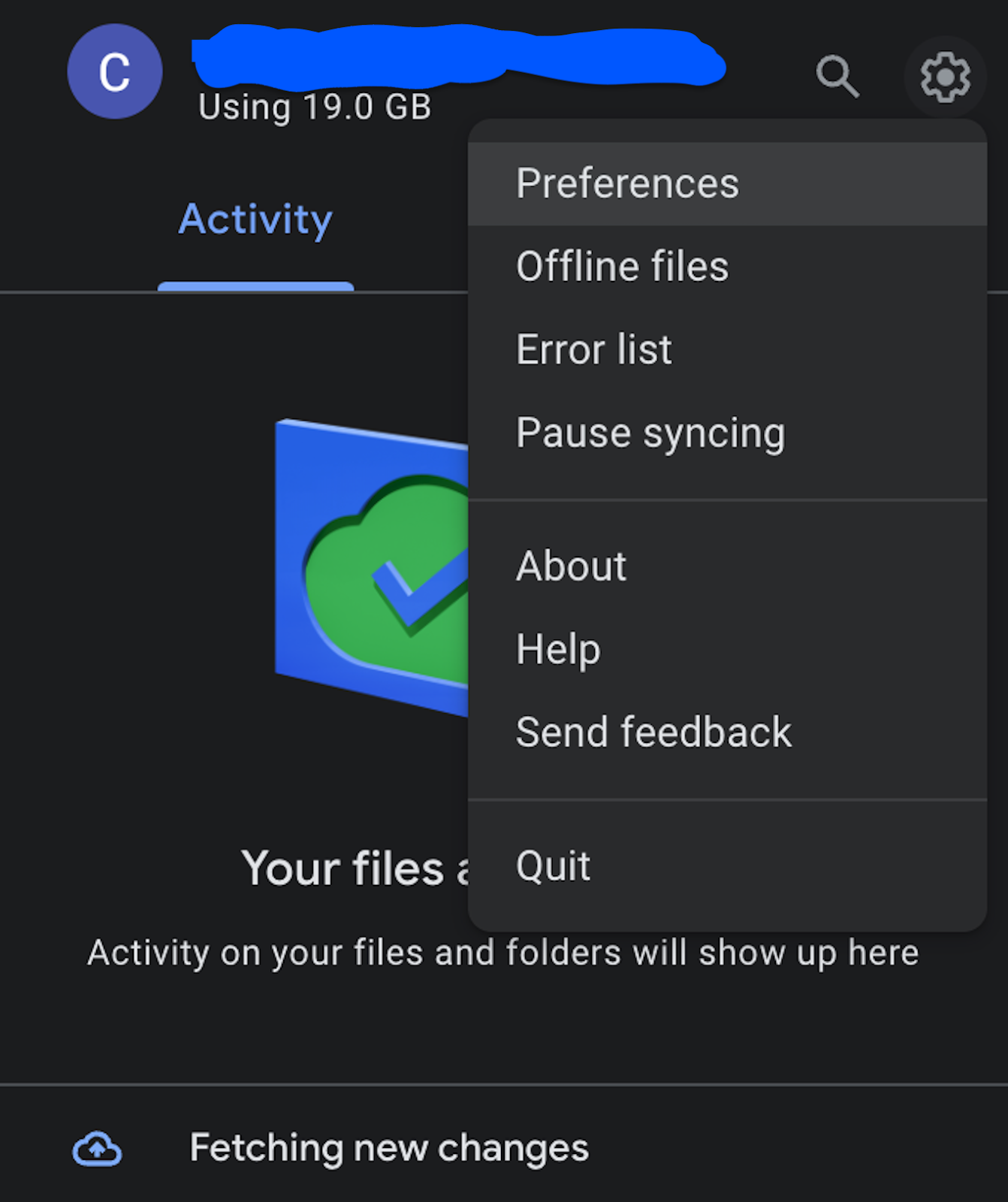
Google Drive For Desktop is Completely Borked
When Google Drive becomes hung or unresponsive for days on a single machine, and the troubleshooting steps above don’t work, you can attempt a manual uninstall.
Proceed at your own risk! Be sure you have copies of files elsewhere, (if they are in xFer purgatory).
- If you can, wait 24 hours and leave computer on and connected to the internet. If you can't do that, or it doesn't work:
- If possible, try to disconnect the account in DFD preferences. If that doesn’t work:
- Disable auto-login within DFD prefs and within system level prefs (“login items”)
- Try to quit the app the right way.
- Try to eject the drive the right way.
- Force Quit all DFD processes via task manager/activity monitor.
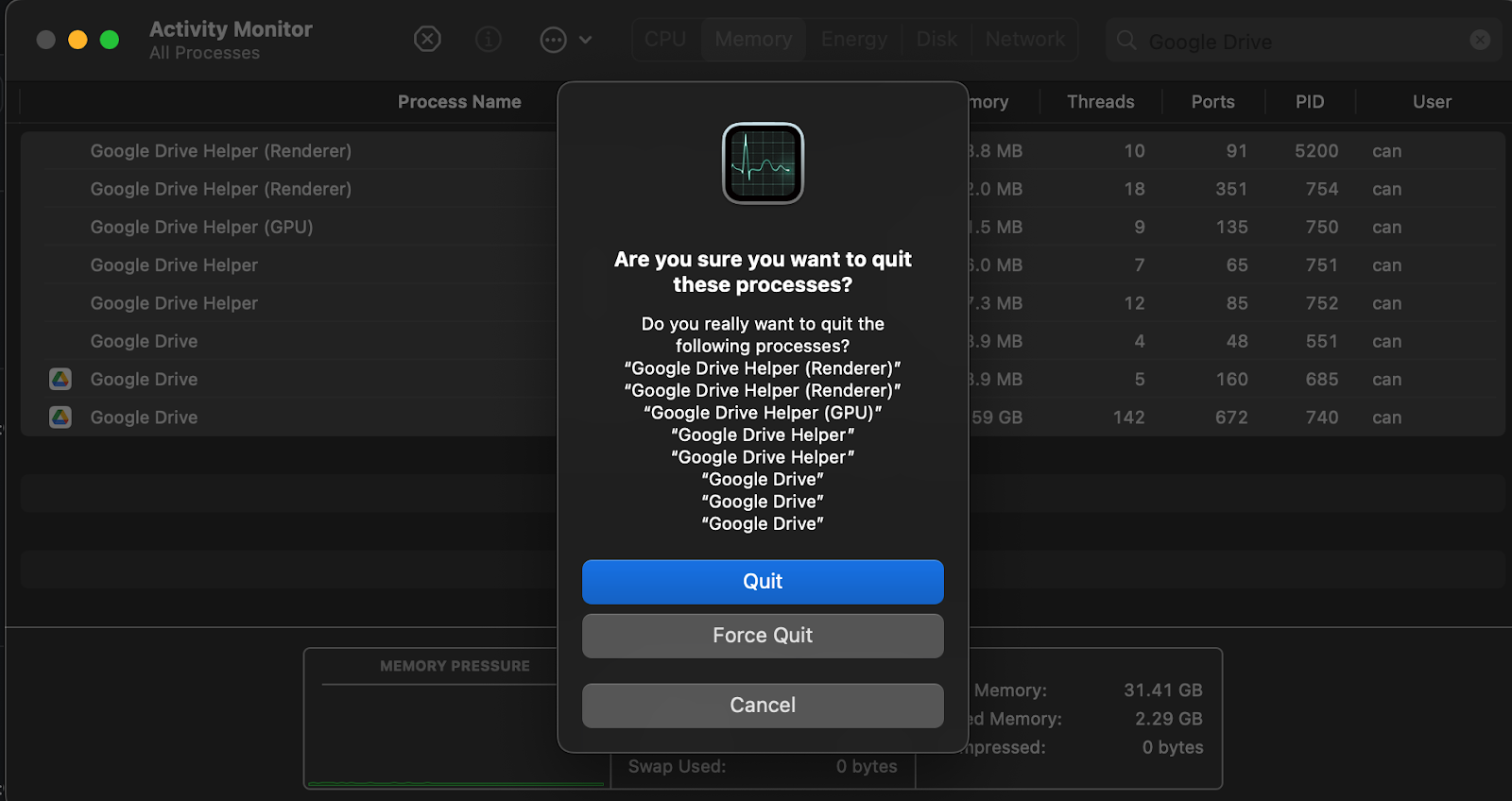
- Delete the DriveFS folder in /Users/yourusername/Library/Application\ Support/Google/DriveFS
- Delete the DFD preferences found in /Users/yourusername/Library/Preferences/
- Delete the Cache found in /Users/yourusername/Library/CloudStorage/ (folder to delete has the prefix "GoogleDrive"
- If DFD isn’t running, delete it.
- Navigate to the cloud storage for Google Drive (this is your local google drive cache), it will say something like “the application ‘Google Drive’ could not be found” – click the delete just to the right.
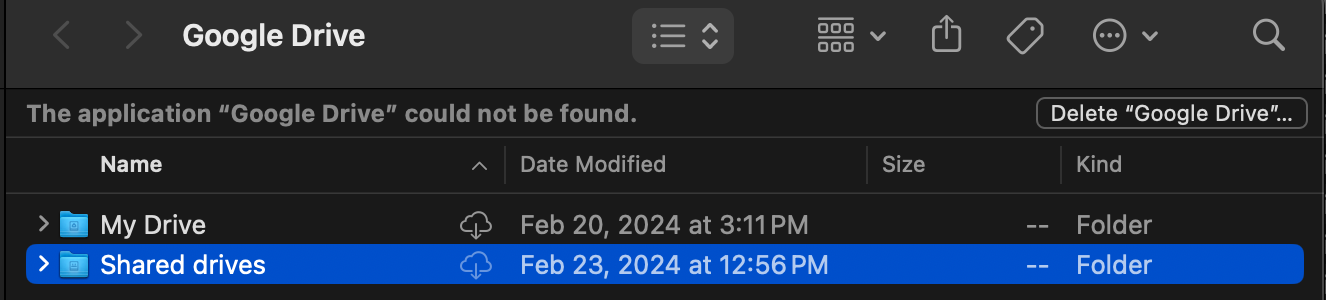
- Watch your computer’s free space go up.
- Run software update on the OS just in case.
- Restart.
- Reinstall Google Drive.