Utility Content
Video Grids
I’ve built a scripted After Effects project that automatically creates grid files based on resolution. Interested? Hit me up.
Having done hundreds of these projects, I’m in the habit of producing grid files. When it’s not our playback tech or we’re debugging our playback system, it also works as a great media player and display audit tool. If the grid file passes QA, we know that any problems in our content are in the content, not caused by the player or display.
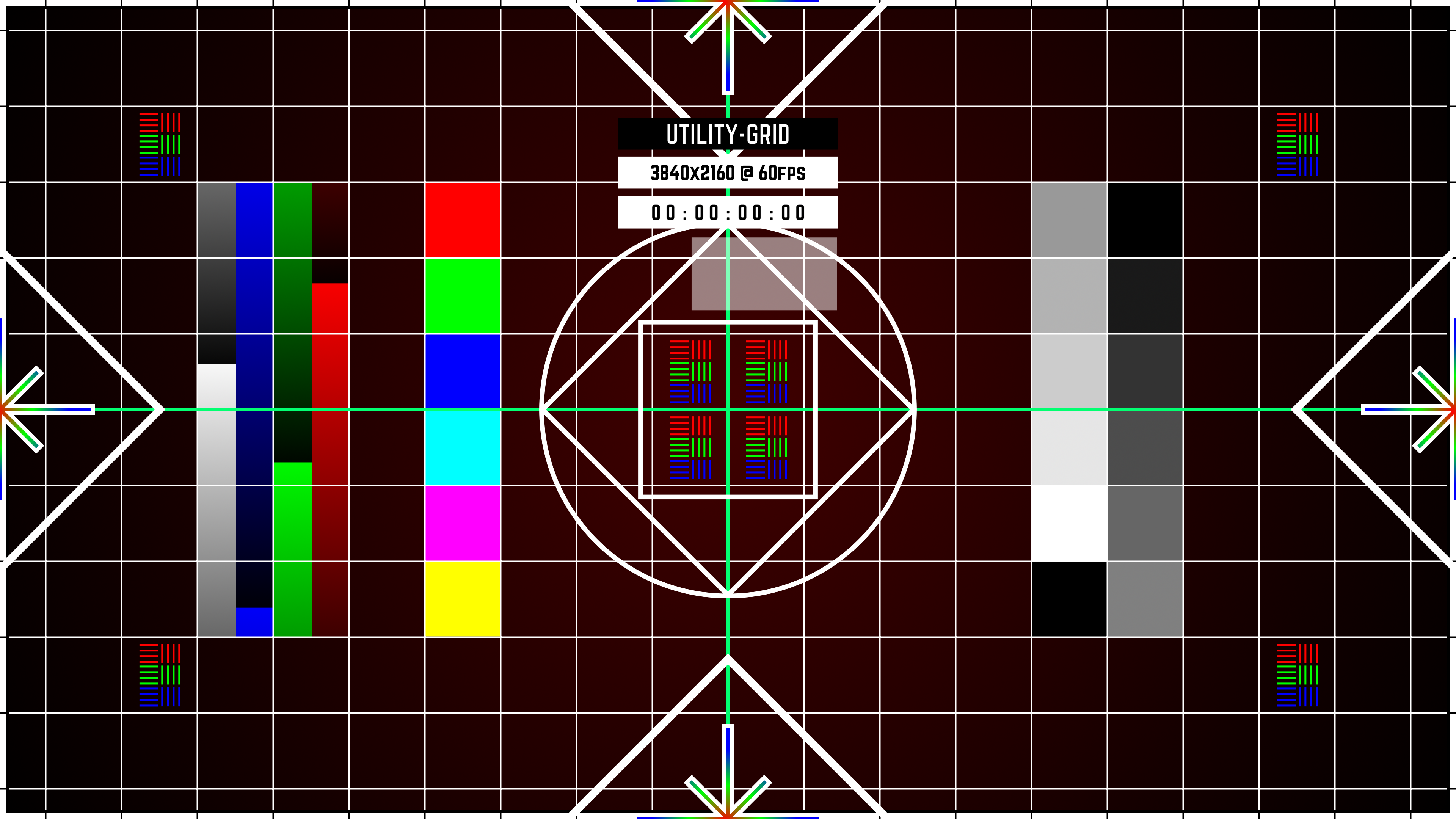
Video Grid Use-Cases
- Aligning and positioning media, video mapping, projection mapping
- Projection blending
- Auditing color, aspect ratio, frame-rate
Basic Video Grid Elements
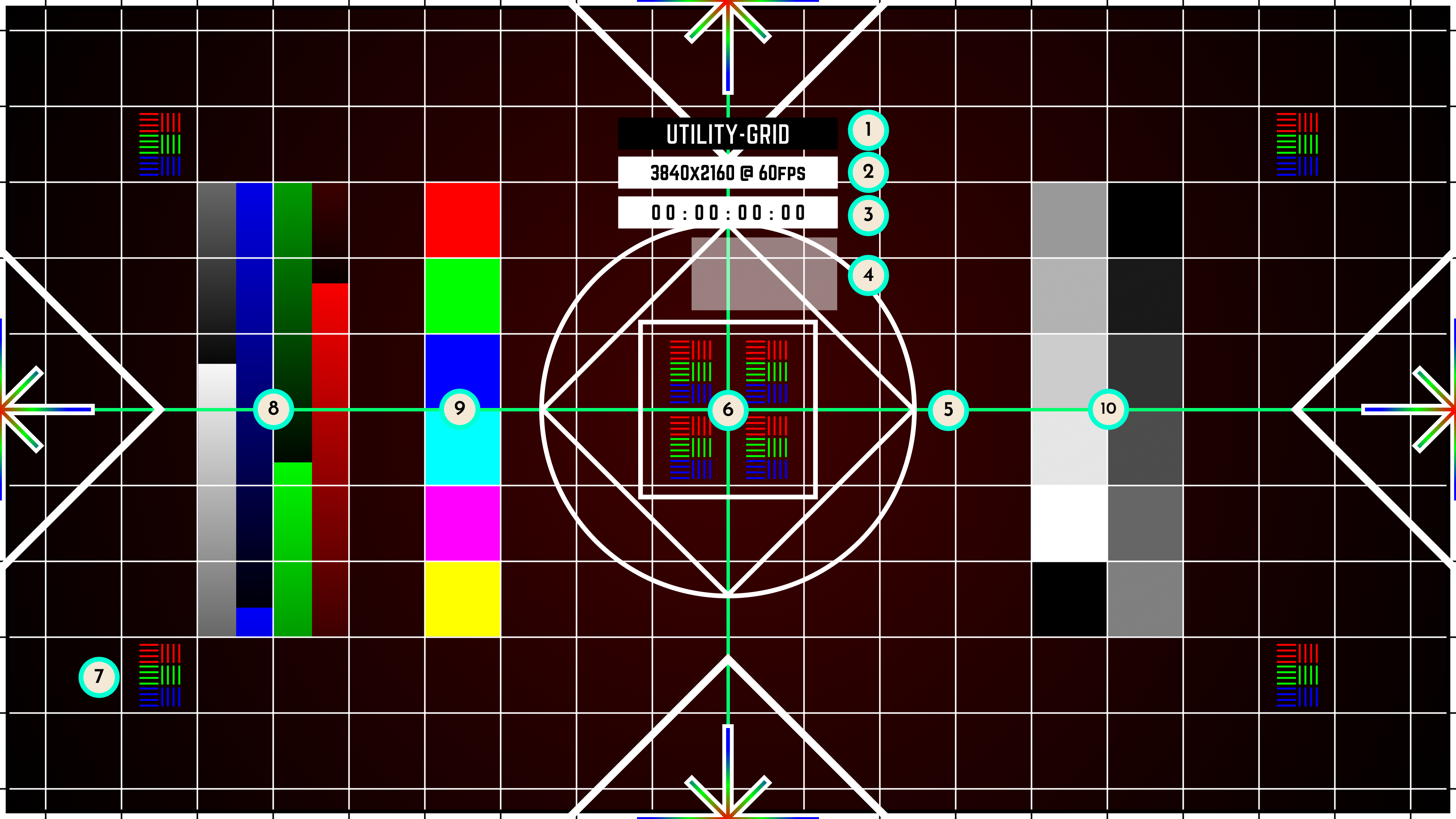
- The iD of the grid is the identification information of whatever surface (or surfaces) the grid file is representing.
- Resolution and Frame Rate
- Current Timecode
- Timecoder Tool™ - this is a tool that includes two rectangles next to each other. Each rectangle plays on every other frame so that the rectangles are never playing at the same time. When playback is smooth and not dropping frames, the eye will perceive it as two semi-transparent rectangles with a solid, less transparent, rectangle of overlap. If you have slight frame drop, you might see some hiccups to this smoothness. If you have a ton of dropped frames, you’ll see a single transparent rectangle persist. This is a tool originally created by Zack Shepard in 2013 and it’s been in use on nearly every project I’ve been on since. Since his original version, a lot has changed - but it still does the same thing!
- The Calibration Shape is a square, within a diamond, within a circle. If the square looks like a square, and the circle looks like a circle (so not a rectangle or oval), that would be a good indication that the aspect ratio is correct-ish. The smaller rectangles in the background are also squares to help evaluate if the linearity in the image is consistent. If those squares change size over time on a flat surface, then there’s a linearity issue. Helpful for mapping, too.
- The Center Line is a cross hair of the absolute center of the grid (green in this example).
- RGB Alignment is those little red, green, and blue lines in the center. It’s there to evaluate whether the display device has color channels calibrated properly (typically only an issue in projection). If the lines are offset from each other, then you know that the convergence is off. Often this is something that can be fixed on the display device. It can also be compensated for in playback at the expense of softness.
- Contrast ramps
- Color cubes with hue-shift over time
- Black and White reference