# Creating Content

How do I make content? How do I *plan* to make content?

# Repairing Content

# Image Restoration, De-Noising, & Upscaling

There are a ton of image restoration tools, especially now that we can clean up old images using tools that are built into Photoshop. Sometimes you still need a finer touch, especially for video clean up. These are some of those tools.

### The Secret Sauce  


When you do image restoration, you’ll almost certainly end up with something that looks too smooth and a little too AI-looking. Even though you’ve just removed noise, you now should add some noise and texturing back in. After Effects has some great built-in grain and noise tools, but Red Giant’s suite of color tools is what you really want to use. No matter how you execute your solution, the end result will look better and is more sellable when you add a little realistic grime back in. The jam is to over-do the clean up and then dial it back with some artistic license. Counter-intuitive.

### Video Stabilization Trick

I’m giving away a good one here. If your footage is pretty gnarly and shaky and warp stabilization vanilla style doesn’t work great in Premiere or After Effects, you can bring that footage into a tool like Topaz and slow the footage way down with some AI tools (sometimes up-rez too). Once the video is slowed way down, you apply warp stabilization in AE/PR until you get it to a point that is acceptable. This requires a lot of levers and pulleys; which slow-motion model, what target frame rate, what setting for warp stabilization etc. When you get the video to a point of acceptance, speed that sucker back up to the original frame rate. If you have any resulting flicker, try using something like Digital Anarchy’s Flicker Free slow motion mode to make it less bad.

## Recommended Tools

### Neat Video

Neat Video is a noise, flicker, and image restoration tool that works within Premiere and After Effects. It’s incredible and worth every penny. Best in class for noise reduction. Running too slow? Open up the plug-in and click on settings, launch the performance tab, and watch the plug-in’s efficiency go from 2 to 11. Very important steps to take as it doesn’t do this automatically.

### BorisFX Continuum

In addition to a sweet package of visual effects (Sapphire), this Boston based company behind Mocha also produces a suite of image restoration tools. Things like: gradient repair, noise removal, image debanding, etc. Absolutely worth the $37 / month when you need it.

### Topaz

Topaz has a suite of tools for up-rez, adding in frames for faux slow motion, and de-noise. Pretty great software. Highly recommended. They are the best in class for up-rez and faux slow in my opinion. Video Ai is the one that I’ve used the most. It’s helped me up-rez VHS and BETA-MAX videos and it’s done a pretty good job at that. I’ve also used it for stabilization and adding in frames for faux slow. Topaz also regularly updates their products so there’s constant improvement. Be warned though: even on a zippy-as-hell computer, you’re going to be doing a lot of waiting.

Thankfully, Topaz doesn’t do a “subscription” model. Instead, you buy it and get 1 year of upgrades. When the year has expired, you can continue to use the most recent update in your previous upgrade cycle – and when you want a new version, you just pay for another year of upgrades. This is probably my favorite model for software that is constantly changing. Very fair.

# Gradient Banding

Lots of content has gradients. Gradients in moving images can sometimes cause banding in your image. This is particularly evident in compressed files like MP4s. Unfortunately, this is a garbage-in, garbage-out process; if your source content has banding, you either have to figure out how to get rid of it, or you need to disguise it. And that’s to-taste. There isn’t a magic pill here.

### When The Banding Is In Your Source

Ideally the footage you start with doesn’t have banding, but it often shows up in stock video. Banding is almost always related to  
compression and/or color bits-per-channel.  
While you can’t always get rid of all banding, you can remove most of it and then disguise it.  
There isn’t a one size-fits-all approach here. Here are some techniques I’ve used over the years and have tested with some of the  
sample footage we’ve been working with:

- Color correction - sometimes just some tweaks in Lumetri will make banding disappear.
- Neat Video Reduce Noise - Love this plugin - really good at removing noise and also is pretty good with removing  
    bands.
- [Boris FX De-Band](http://tech-almanac.org/books/creating-content/page/image-restoration-de-noising-upscaling) - Another great plugin that does exactly what is says.
- Topaz - Enhancement - Theia settings. Mess around with all these until you get something good enough.

Once you’ve hit a happy medium, you can disguise whatever banding remains with a little grain or noise - just be careful and apply it to-taste. In general a workflow of Neat Video → Boris De-Band → Lumetri → A little noise or grain is usually pretty decent.

### When You Cause The Banding In Your Export

The secret sauce with this is making sure you’re working inside a project that is set to 16 bits per channel (16BPC). When you export, even if your delivery codec is (usually) only 8bpc (HAP, Mp4, etc) or 10bpc (notchLC), you’re way less likely to have any banding. If things still look messy, set your exporter to Trillions of Colors. This doesn’t solve banding from source, but it will help to solve banding that appears as a surprise in your export.

<table border="1" id="bkmrk-make-sure-that-you%E2%80%99r" style="border-collapse: collapse; width: 100%; border-width: 0px;"><colgroup><col style="width: 48.8095%;"></col><col style="width: 1.19048%;"></col><col style="width: 50%;"></col></colgroup><tbody><tr><td style="border-width: 0px; padding: 0px;">[![image.png](http://tech-almanac.org/uploads/images/gallery/2025-04/scaled-1680-/1Gzimage.png)](http://tech-almanac.org/uploads/images/gallery/2025-04/1Gzimage.png)

</td><td style="border-width: 0px; padding: 0px;"></td><td style="border-width: 0px; padding: 0px;">Make sure that you’re rendering content directly out of After Effects at the end of the chain (not AME), and you are exporting a codec that allows for trillions of colors. 422 / 4444 / TIFF uncompressed can all do this. So you're working in 16bpc, then rendering 16bpc (“trillions of colors”) and that is being interpreted to 10bpc or 12bpc. Confused yet?

Rendering FYI: AE renders uncompressed 16bpc TIFF sequences much faster than 16bpc PNG (on M1 and Mac Intel). TIFF has a way bigger footprint wise but renders at a factor of 20:1 out of AE. Converting to PNG in AME from the TIFF is a no go as it will convert to 8bpc and you’ll get nasty gradients again. Converting through something like Bridge takes at least as long as the straight render from AE to PNG.

</td></tr></tbody></table>

Even when you’re exporting an APR 4444 file, you might still see some banding. You can solve this by adding noise or dithering to the gradients and it’ll make a difference – but it is a trial and error process. Try finding a few seconds that show banding on export and tweak those few seconds until the banding is gone. Then, apply those settings to the entire duration.

Alternatively, you can export with as little compression as possible (AIC or QTRLE) and then transcode to something like HAPr, which does a great job compressing gradients!

### Are Your Sure It's Not The Media Player?

Sometimes banding can be caused by how a media player interprets video. Does the final codec MP4 appear clean in Quicktime, but the same file looks terrible on a Brightsign? Time to disguise the banding with some noise, or try a different final codec. Also, go ahead and check the color settings on the display or projector.

### Or the Software?

TouchDesigner, After Effects, MadMapper all interpret color differently – even if you match color settings!

# Recording Photo & Video

# Intro & Cheat Sheets

I have a bunch of buds who are camera experts. I am not. That said, I’ve been shooting with some camera or another, in a semi-professional way, for nearly two decades. I’m in that weird spot where I started getting interested in photo/video with digital photography before digital photography was actually good. I had some film things when I was a youth, but was an early adopter to very shitty early-digital cameras. Mini-DV (of 28 Days Later fame), and 3.4 Megapixel digital cameras were what I used early on.

Over time, I graduated to HDV (still a tape), then DSLR, then Digital Cinema, then Mirrorless systems. I believe Mirrorless systems are the best, accessible, camera system for semi-professional photo/video dorks. I’ve been a Fuji boy since 2020 and love their idiosyncratic X line. If you want to get into photo/video, the best you can do is just do it, a lot. There’s a famous quote, that I’m paraphrasing, that goes something like “the best camera is the one you have on you.” This is true. But it helps to like the tool and I refuse to believe that a mobile phone with a camera is all you need. Great cameras, but there’s a massive difference between that and traditional camera systems with real optics. Again: no shade on Apple (or Google), it’s just not the tool for making and doing everything. Also - tactile crafts are just a helluva lot more satisfying. Gimme those knobs and dials!

### Camera Technique Cheat Sheet  


- Shutter Speed - the speed that the shutter happens - faster = darker and more sharp. Faster looks like this 1/240. Slower looks like this 1/15. In general, the rule for video and your shutter speed is for it to be 2x the frame rate. For 23.976/24, you want to shoot at 1/48. 60fps, 1/120. Not following this rule is called shooting “off-speed”.
- Shutter Angle - Shutter speed, but for video. A higher number has greater motion blur, a smaller number is sharper (less motion blur). 180\* is basically equivalent to 1/50. I know there’s a formula for ideal shutter angle but don’t remember.
- Aperture - the amount of light that’s let in through the lens by adjusting the iris blades - lower = shallower depth of field. Lower looks like this f/1.4. This is called a “wider” aperture. Camera people will say something like “hey let’s open it up a little bit”. This is what they’re talking about. The opposite is “closing down” to make it “narrow.” A higher number looks like this f/22. Film use “T” instead of “F” - I think it’s basically the same thing. If you start saying things like “closing down”, you might appear very smart.
- Frame rate or FPS - generally speaking, you want your frame rate to be half the shutter speed, so at 24 fps you shoot at a shutter speed of 1/48. 
    - Standard frame rates are: 
        - 23.976 (most frequently seen IMHO)
        - 24
        - 25 (BBC Mode)
        - 29.97
        - 30
        - 48
        - 59.94
        - 96
        - 60 (most frequently used for projection media and animated content)
        - 120 (fun)
        - 240 (very fun)

### Camera Mode Cheat Sheet

I'm embarrassed to admit how old I was before I realized what PSAM meant, and I'm even more embarrassed to admit how old I was before I realized what the letters meant.

P - “**Program**” use exposure comp. dial to change your photometry. If ISO is “auto” then this is considered “full auto”.

S - “**Shutter Priority**” use exposure comp. dial to change your photometry. You manually set the Shutter here, and everything else is auto.

A - “**Aperture Priority**” use exposure comp. dial to change your photometry. You manually set the aperture here, and everything else is auto.

M - “**Manual**” - full manual baby

# Camera Pro-Tips

### Rolling Shutter

You go to playback your media after your camera test and there's refresh bands that slightly overlay different opacities over your media. Oh no! This means that your frame rate and shutter speed isn't synchronized to some kind of electric lighting – usually appears from CFL bulbs, fluorescent tubes, and other non-continuous lighting sources (like projectors).

The first thing to try is adjusting your shutter speed (or shutter angle) to see if you can make the bands go away. I recommend checking the media on a larger monitor because sometimes, the bands are harder to notice in an EVF or an on-camera monitor. Some cameras even have extremely fine-tuned shutter settings called "flickerless" and you can enable that feature to really dial it in.

This is especially critical to check when you're shooting off-speed – say at 120 FPS, you won't see the banding while you're recording, but it might show up in playback.

Unfortunately, sometimes, you might need to also adjust your frame rate – this is wildly inconvenient for all the reasons.

On rare occasions, it is not possible to fully eliminate flicker and rolling bands, so do your best to minimize it and do a quick repair check on a computer.

#### Rolling Shutter Repair in Post-Production

Thankfully, the bands that are harder to see on an EVF are easier to fix in post.

Alternatively, if you're wrapped and can't re-shoot, you can try to fix this with [Flicker Free](http://tech-almanac.org/link/67#bkmrk-ae-plugins). It doesn't always work, but solves rolling shutter issues in many situations.

Really gnarly banding is a lot harder to fix.

# LUTs

LUTs are “Look Up Table” color files that apply a “look” to footage, or provide a color conversion to footage. Camera manufacturers often provide LUTs to use on top of their “Log” (uncorrected) footage.

There's a lot more on LUTs that someone can add later.

#### Adobe LUT Location

This is the path on a Mac computer for you to drop in your default preset LUTs for Premiere and After Effects. This is where you’d want to drop utility LUTs like FLogToWDR and then they’d show up in Lumetri color panels across both apps.

/Users/%user/Library/Application Support/Adobe/Common/LUTs/Creative/  
/Users/%user/Library/Application Support/Adobe/Common/LUTs/Technical/

To install for all users and for it to work properly in After Effects :   
Library/Application\\ Support/Adobe/Common/LUTs/Technical/

# Legacy Formats

### Mini DV &amp; HDV

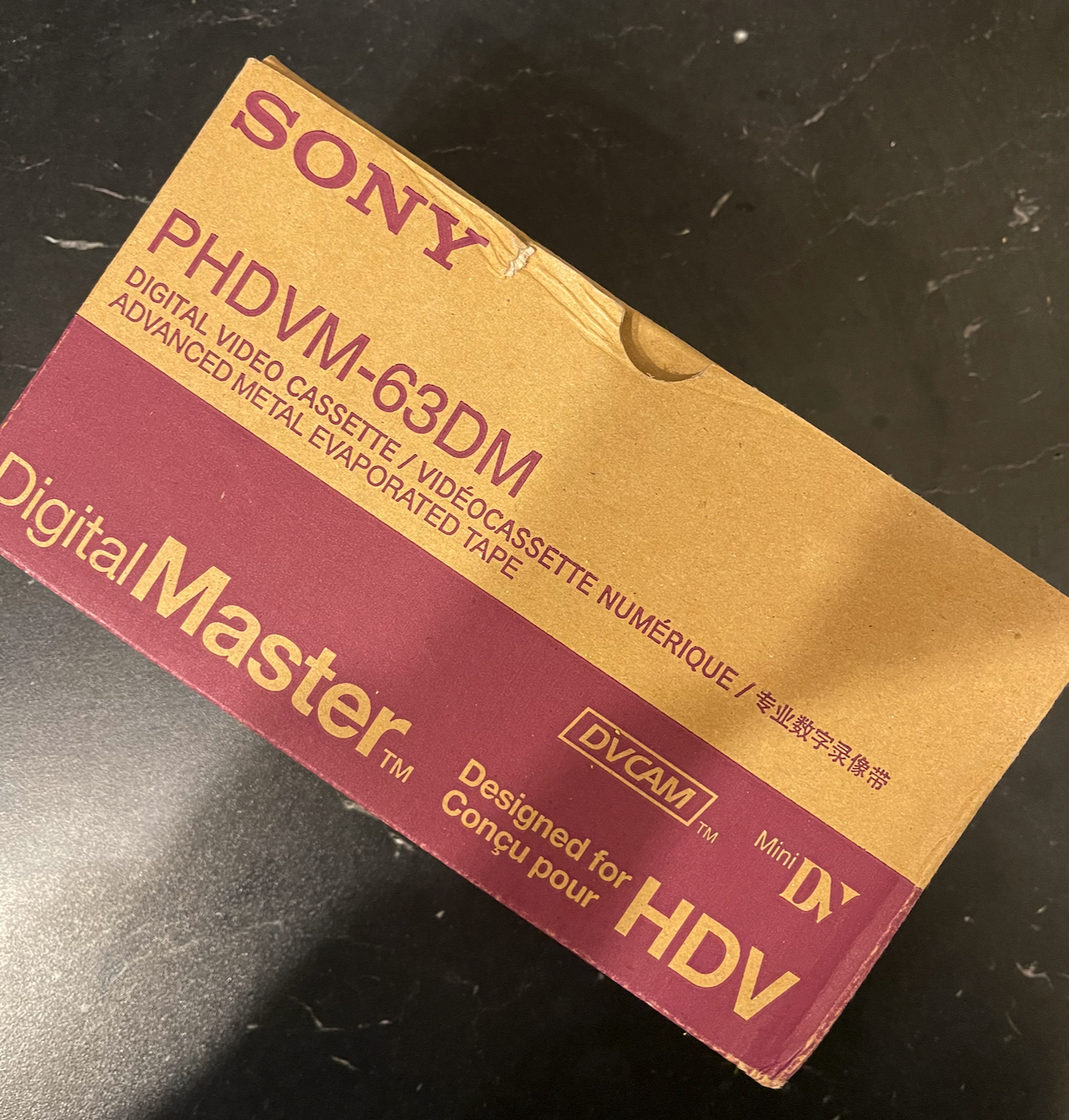
<table border="1" id="bkmrk-as-recently-as-2022%2C" style="border-collapse: collapse; width: 100%; border-width: 0px;"><colgroup><col style="width: 28.6049%;"></col><col style="width: 1.47043%;"></col><col style="width: 70.0419%;"></col></colgroup><tbody><tr><td style="border-width: 0px; padding: 0px;">[![image.png](http://tech-almanac.org/uploads/images/gallery/2025-04/scaled-1680-/aiaimage.png)](http://tech-almanac.org/uploads/images/gallery/2025-04/aiaimage.png)

</td><td style="border-width: 0px; padding: 0px;"></td><td style="border-width: 0px; padding: 0px;">As recently as 2022, I did a project where I shot on HDV tapes and then imported from tape so that I could edit the footage and pass it through After Effects (and color correction). This brought back flashbacks of using Mini DV from middle school through to my early career. Unfortunately, the classic Log and Capture is currently broken in Premiere Pro, but it still works just fine in **Final Cut Pro X**.

Some reminders : Remember to Blank Your Tape before you shoot. This reduces the chances of getting timecode errors which will totally bork your footage. Blanking tapes means just shooting out the entire tape with the cap on before you shoot.

To capture this footage from tape to computer, you’ll need someway to plug into the Firewire protocol. Here’s how you do that: Firewire 6-Pin/Firewire 400 (the house shaped plug) to Firewire 9-Pin/Firewire 800, and then Firewire 800 to Thunderbolt 2 and then Thunderbolt 2 to Thunderbolt 3. *Disgusting,* but it works.

</td></tr></tbody></table>

# Utility Content

# Video Grids

I’ve built a scripted After Effects project that automatically creates grid files based on resolution. Interested? Hit me up.

Having done hundreds of these projects, I’m in the habit of producing grid files. When it’s not our playback tech or we’re debugging our playback system, it also works as a great media player and display audit tool. If the grid file passes QA, we know that any problems in our content are in the content, not caused by the player or display.

[![Video-Grid-4k.png](http://tech-almanac.org/uploads/images/gallery/2025-04/scaled-1680-/video-grid-4k.png)](http://tech-almanac.org/uploads/images/gallery/2025-04/video-grid-4k.png)

### Video Grid Use-Cases

- Aligning and positioning media, video mapping, projection mapping
- Projection blending
- Auditing color, aspect ratio, frame-rate

### Basic Video Grid Elements

[![Video-Grid-IDs-v2.png](http://tech-almanac.org/uploads/images/gallery/2025-04/scaled-1680-/video-grid-ids-v2.png)](http://tech-almanac.org/uploads/images/gallery/2025-04/video-grid-ids-v2.png)

1. The iD of the grid is the identification information of whatever surface (or surfaces) the grid file is representing.
2. Resolution and Frame Rate
3. Current Timecode
4. Timecoder Tool™ - this is a tool that includes two rectangles next to each other. Each rectangle plays on every other frame so that the rectangles are never playing at the same time. When playback is smooth and not dropping frames, the eye will perceive it as two semi-transparent rectangles with a solid, less transparent, rectangle of overlap. If you have slight frame drop, you might see some hiccups to this smoothness. If you have a ton of dropped frames, you’ll see a single transparent rectangle persist. This is a tool originally created by **Zack Shepard** in 2013 and it’s been in use on nearly every project I’ve been on since. Since his original version, a lot has changed - but it still does the same thing!
5. The Calibration Shape is a square, within a diamond, within a circle. If the square looks like a square, and the circle looks like a circle (so not a rectangle or oval), that would be a good indication that the aspect ratio is correct-ish. The smaller rectangles in the background are also squares to help evaluate if the linearity in the image is consistent. If those squares change size over time on a flat surface, then there’s a linearity issue. Helpful for mapping, too.
6. The Center Line is a cross hair of the absolute center of the grid (green in this example).
7. RGB Alignment is those little red, green, and blue lines in the center. It’s there to evaluate whether the display device has color channels calibrated properly (typically only an issue in projection). If the lines are offset from each other, then you know that the convergence is off. Often this is something that can be fixed on the display device. It can also be compensated for in playback at the expense of softness.
8. Contrast ramps
9. Color cubes with hue-shift over time
10. Black and White reference

# All Things Audio

# Stem Separation

Stem separation is the process of taking a song and splitting it up into unique parts.

The basic version of this is :

- Instrumental
- Vocals

The more complex version of this is :

- Bass
- Drums
- Vocals
- Other

It used to be that you needed to use iZotope RX for this. RX is still great, but there are open source solutions that are pretty darn good.

May I recommend : Ultimate Vocal Remover

[Website here](https://ultimatevocalremover.com/) / [Github here](https://github.com/Anjok07/ultimatevocalremovergui/releases/tag/v5.6)

Here's a great recipe to use. You need to download some of these models within the app's settings first.

Also, even though it says GPU conversion only works for NVIDIA, it makes a huge difference on Apple Silicone if you have it checked. woooooooo

[![image.png](https://tech-almanac.org/uploads/images/gallery/2026-03/scaled-1680-/image.png)](https://tech-almanac.org/uploads/images/gallery/2026-03/image.png)