Hard Drives & Storage
HDD, SSD, NAS, RAIDs, etc
Hard Drive Types
There are a few kinds of drives. Spinning disks - either 3.5” @ 7200rpm (faster) or 2.5” @ 5400rmp (slower). Then there are solid state drives (SSDs), there are the 2.5” versions of this (fast) and the NVME version of this (fastest). In addition there are RAIDs, which is a collection of drives in a specific configuration. RAIDs can be made up of all kinds drives, or a mix of drive types. They work best when the drive type is the same IMHO.
External SSD hard drives that can be USB-C or USB-A run faster R/W with USB-C even if the USB-A port is rated at the same speed as USB-C. This is confusing but tested on MAC and PC with Sandisk Extreme Pro
The interfaces below can communicate with a computer in various ways – directly via PCIE or SATA or through a external enclosure and a secondary interface such as USB or Thunderbolt.
| Hard Drive Type | Interface |
Max R/W Speed Sequential |
Average R/W Sustained Speeds Sustained |
| Spinning Disk Drive 3.5" @ 7200 RPM | SATA I/II/III | 210 MB/s | 85 MB/s |
| Spinning Disk Drive 2.5" @ 5400 RPM | SATA I/II/III | 120 MB/s | 60 MB/s |
| Solid State Drive 2.5" | SATA III | 600 MB/s | 450-550 MB/s |
| Solid State Drive NVMe Gen 3 | PCIE 3 | 3,500/3,000 MB/s |
250-1,500 MB/s Depending on temperature and cache |
| Solid State Drive NVMe Gen 4 | PCIE 4 | 7,400/6,800 MB/s | Haven't used one – theoretical |
| Solid State Drive NVMe Gen 5 | PCIE 5 | 14,000/10,000 MB/s | Haven't used one – theoretical |
Format Types
- FAT
- ExFAT - Cross Platform, but no journaling, so drive caches re-index. If you haven't plugged one in a while, it takes some time to re-index.
- FAT 32 - Legacy
- NTFS - Windows Systems
- APFS - Newer Mac Systems
- HFS+ (Mac Os Extended) - Older Mac Systems
- EXT4 - Linux
RAIDs
RAIDs
RAIDs are a collection of drives, that when put together, are faster and/or bigger and/or safer. A RAID without any special configuration other than a collective volume is called JBOD ("Just a Bunch of Drives").
RAIDs might have a cache drive that is faster than the rest. Think 4x spinning drives, plus a fifth NVMe.
RAID Configurations
- RAID 0 - also called “striped”, this speeds your drives up considerably, but has zero redundancy. A regular 7200 drives has read/write (“R/W”) speeds of around 120 MB/s. A RAID 0 configuration of 4x 7200 drives has a 700 MB/s R/W. 4x2TB drives = 8TBs.
- RAID 1 - also called “mirrored,” this keeps the drives mirrored for redundancy/back-up. The speed is just as fast as a single drive (so 120 MB/s @ 7200). Slower but safer. 4x2TB drives = 4TBs.
- RAID 2, 3, 4 - I never use any of these so I couldn’t tell you what they are.
- RAID 5 - this is a RAID configuration that gives you speed and parity. Best of both worlds. 4x 7200 drives has a R/W of ~450 MB/s. 4x2TB drives = 6TBs.
Thunderbays and SoftRaid
I use and generally recommend Thunderbays and SoftRaid.
OWC Thunderbays work without software on Mac computers, but for improved speeds, and reconfiguring your RAID, you need Softraid XT. It is $100 per seat and $20 for additional seats on the same license. Be warned that you should install Softraid XT before you plug in a Softraid drive like a Thunderbay. Otherwise! You can temporarily bork your drive: it will read as a failed drive on any system and you need to clear the i/o and then re-validate. Proper installation means you need to change security config via recovery mode on Mac systems. Confused? Call OWC, their support can be really great. Have yet to test SOFT RAID on Windows, but it is supposed to work. Soft Raid works on Windows, but the performance isn’t super great as of Dec 2023. R/W is ~150MB/s compared to mac where it’s ~700ish (4-Bay Softraid 0 in a Thunderbay).
If SoftRaid is acting buggy on Mac, don’t despair, run sudo softraidtool uninstall in terminal and that’ll clean it out. Then just re-download the dmg and reinstall.
If SoftRaid is acting buggy on Windows, don’t despair, run the uninstaller via the Windows Control Panel. There’s even an option to attempt repair!
Also, if a SoftRaid is taking forever to mount - just be patient. Some legacy ExFat formatted SoftRaids need to manually index before they can mount. Worth mentioning: you need a licensed version of SoftRaid in order to mount this legacy type of RAID. This is a bummer. Hopefully this changes but this is still true as of January 2024.
Drive & Workflow Recommendations
General Storage Workflow
How do I roll? 2x copies of everything, all the time.
All of my personal RAIDs are RAID 0s because I prefer the size and speed. When deep in production, I run weekly(ish) backups to a second RAID 0 using a program called Sync Folders Pro which is a program where you can automate backups. Generally speaking, this RAID only carries my assets (video files, photos, etc) and project archives. I don’t wipe the source (like the SD cards), until I’ve done the backup. My project folders live on Dropbox and are constantly backed up. If I’m feeling paranoid, I might backup in a third place. I recommend this workflow.
External SSD NVME Recommendations
Big fan of these Sandisk Extreme Pro drives. Sustained R/W over USB-C is consistent and good.
Second to those are the non-pro version of the Sandisk Extremes. Other than them not being “Pro”, the sustained R/W seems the same. They are likely rated for less lifetime R/W, but a good value otherwise.
After that, I recommend Samsung T7s - these tend to be more expensive, for some reason, but are easier to find. Their sustained R/W isn’t as good as the pro or non-pro Sandisk. This is true of their predecessors, the T5s, as well. These were the first mass-produced, affordable, and decent external M2s, so they were a good start. I still use them a lot but prefer those SD Extremes.
Local Backups (of Backups)
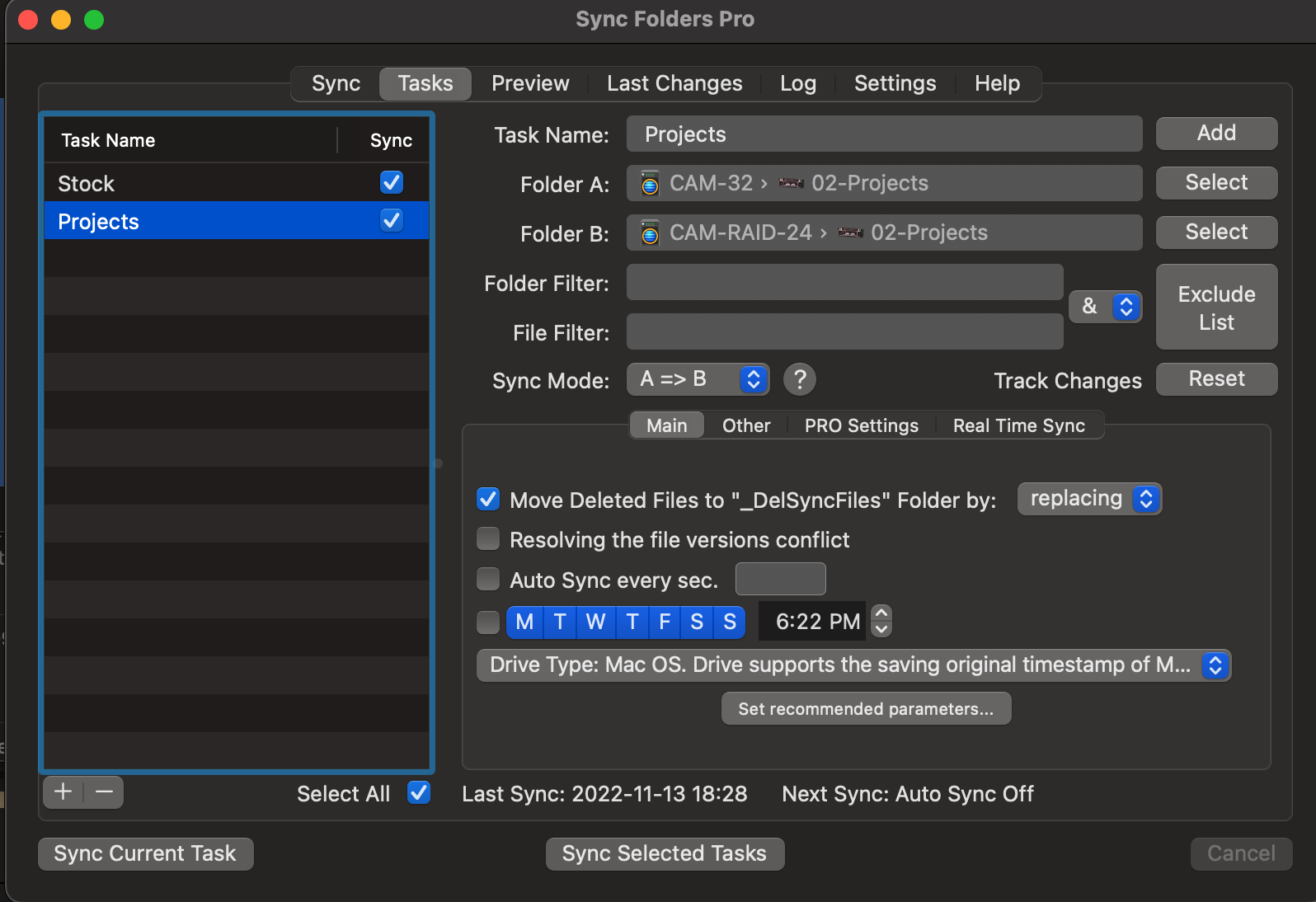
Sometimes you need to make local backups – if you have big boy exports or a ton of source footage. A local backup is a non-cloud backup that you do yourself. I use a program called Sync Folders Pro that is really great because you can set different copy times and then save that config. This makes backing up things in a really specific way, really easy. I don’t have to think about it because I have my presets there ready 2 go. It does not checksum by default but you can turn that on. Well worth the price of $8.99 plus an in-App $4.99. They have really good HELP documentation too.
For posterity, here’s a config I use to backup my Projects folder to my secondary RAID (FWiW, my computer just got wiped during a repair and I lost all of these settings, thanks past me for providing for future me).
Storage Troubleshooting
Hard Drive Slow?
Use BlackMagic Disk Speed Test to bench your read and write (r/w) speeds. This is a standalone application on Mac (app store and BMDD page), and can be downloaded as part of the Desktop Video package for Windows from BMDD.
Spinning disks (eg 5400 / 7200) outside of RAID configs are supposed to be 100 MB/s r/w (5400) or 120 MB/s (7200). If you have a drive that is speed testing slower than this - it is likely time for a new drive. Hope you have everything backed up!
If you have any kind of drive that takes forever to mount, but then runs fine once mounted - you’re probably using a file system that doesn’t have a cached index the drive (eg ExFat). While this directory structure is universally accessible, this is a major shortfall. and alarming if you didn't expect to wait.
If you have an SSD that is very slow, but used to be fast, there are three possible reasons that you should check before you give up on it.
- External / Under-spec cable (eg using a USB2 cable for some reason, or a USBC cable that doesn’t use full bandwidth. Using a Thunderbolt 3 or greater cable will always work at full speed.)
- External / Under-spec bus (eg a bus that is rated as USB3, but it doesn’t have the right power driving the external drive).
- Internal & External / if speeds are approx 5 MB/s it’s likely that the active garbage collection (“trim”) needs to be repaired. A reformat will not fix this. The solve for this is to plug the drive into a computer, turn the computer on and leave it in BIOS, wait a day, surprise, your drive speed has been restored. If you’re like me and don’t own a (spare) PC (that you can afford to not use), I bet one of your clients has a NUC on a shelf somewhere…! I can’t believe this is a real problem and I can’t believe how dumb the real solution is. Thanks to Matt R. for reminding me of this one.
|
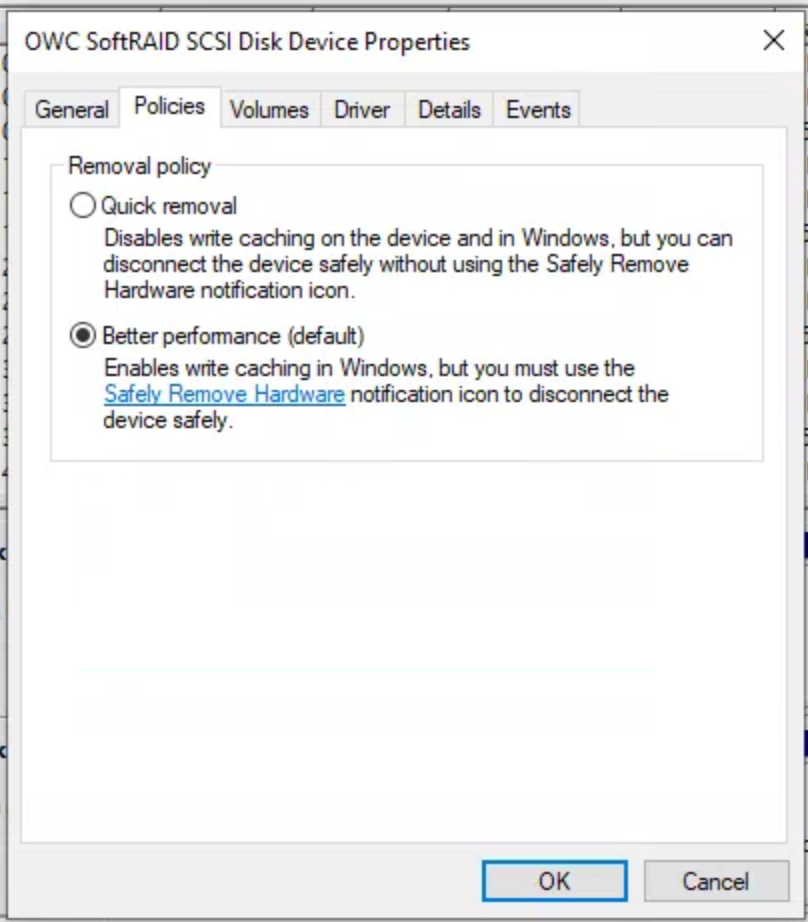
On Windows machines, new hard drives are automatically configured for “fast eject” - meaning they are capable of the unplug of a drive rather than a manual specific eject (not recommended, you should always manually eject). For most drives, this doesn’t effect speeds, but for some external drives that are specially configured, you need to manually configure the drive for “performance” instead of “fast eject.”
How to:
|
 |