Rendering
Bench Tests
Since 2017 or so, I’ve been running GeekBench statistics on most machines I've custom built or buy pre-built. Since GeekBench measuring standards updates fairly often, I always have a level set where I’ve got a device benched in the latest version and the previous version. Everything is proportional, so I can make some assumptions that way. I also will run renders on whatever machines I have available to me every few months to see which performs best. It’s a good level set.
You’ll notice that I don’t run a Maxon based Cinebench because I don’t do a lot of 3D work and Apple devices don’t have NVIDIA GPUs so they cannot be evaluated for CUDA. In general, dollar for dollar, Windows boxes out perform Apple here to a massive degree. I will run Cinebench to evaluate if a media server is having issues with a GPU, or if I’m just curious.
Latest and Greatest Render Tests (ca. 2024)
128,000,000 pixel source composition grid file, split into 5 renders of different sizes. This resolution in exponential K is closest to 16k, but if you measure by number of 1920x1080 that fit into it, it's the equivalent of about 61k.
Competition
- M3 Max Mac OS Sonoma with 16-Core CPU and 40-core GPU / 128GB Ram / 2TB / w/ 500GB Cache
- GeekBench 6 Single-core: 3193 / Multi-core: 21393 / Compute: 154180
- M1 Max Mac OS Sonoma with 10-core CPU and 32-core GPU / 64GB Ram / 4TB w/ 400GB Cache
- GeekBench 6 Single-core: 2438 / Multi-core: 12769 / Compute: 120302
- Boxx Win 10 Pro Intel i9-12900K 16-Core (24 logical) 2x RTXA4000 16GB / 128GB Ram / 2TB OS / 4TB w/ 450GB Cache on a secondary internal M2
- GeekBench 6 Single-core: 2684 / Multi-core: 15422 / Compute: 121267
Results
The M1 out-performed the Boxx machine by a factor of 2:1 when initially rendering these files out of After Effects directly to Apple Pro Res 422. Frame rendering into an image sequence (PNG, TIFF, etc) performed at the same proportion. If I wanted to re-assemble those breakouts into combination files, the Boxx machine outperforms the M1 by a factor of 2:1. The M3 functioned proportionally to that.
As expected, rendering as a bench test is variable based on what you’re rendering. Even if it’s as simple as combining files or splitting them up. That the M1 outperforms the Boxx in any rendering bench is very good. For most of the last two decades, you’d never see an Apple device do this.
Running splits or “tiles” of rendered content via FFMPEG, the M3 outperforms the M1 and the Boxx by a factor of 2.5:1 in some cases. Pretty wild.
Render Efficiencies
Working in Creative Technology means you’ll probably be rendering high-resolution, oddly sized media in production settings where every second matters. Over the years, I’ve developed some pretty good tricks to speed things up, both in processing, and in workflow!
Whatever program you work the fastest in, that produces the media you need to produce, is the program you should work in when you’re under pressure. When you’re not under pressure, you should figure out what programs do what things better for processing time.
Premiere can render edits and color much faster than the identical edits and color in After Effects – so for editing, use Premiere. But, After Effects has much more opportunities for automation and custom workflows, so for complex image processing, use After Effects and then bring it into Premiere.
Remember that efficiencies are only important at scale – what I mean by that is that if you’re just concepting something out and doing it dirty, just use whatever you can to get the concept at of your brain and into napkin-mode, but as soon as you’re making that thing in a production model, efficiencies begin to matter. You’ll see throughout this handbook that I’ve used Vectorworks for diagrams; this isn’t the best program for pixel layouts, but it’s the one I’m fastest in!
Tiles & Splits: A Projector Blend Rendering Case Study
This case study assumes some understanding of projection engineering and that the blend is happening on the Media Server side. It is possible to bake blends, but it’s not something I recommend unless you have to.
Splitting content up after a content render is more efficient then rendering splits at the source.
Say that I’m going to be projecting a 3x1 4k projector array at a 25% blend. This means that my overall canvas is 9600 px wide x 2160 px high. You could call this my “content canvas.” A template for creative folks would just be a blank canvas at that resolution. Typically, at higher resolutions, you may need to separate out your media into “splits” or “tiles” so that you are playing back efficiently on your show machine.
The obvious thing to do would be to configure your template so that you render out the slices from there. This is the easiest, less thinking required, method to rendering splits – but it’ll take a ton of extra time as the computer needs to process the whole canvas three times, instead of once! In some cases, say in Premiere, that might make sense – but in After Effects, this could really add a lot of render time, particular to high resolution renders.
Instead of processing your composition three times, you render it once and use a different tool to process it into splits. It requires less thinking to process your composition three times, but it requires less time to process it into splits as a post-creative-render process. Bottom line: It is faster to render the whole surface than pre-render splits in After Effects.
For doing this efficiently, I recommend FFMPEG – it absolutely rips through a splits process. That said – you can achieve similar ends using Premiere (but will require more QC, as there are greater human error possibilities), or Shutter Encoder (a great GUI for FFMPEG).
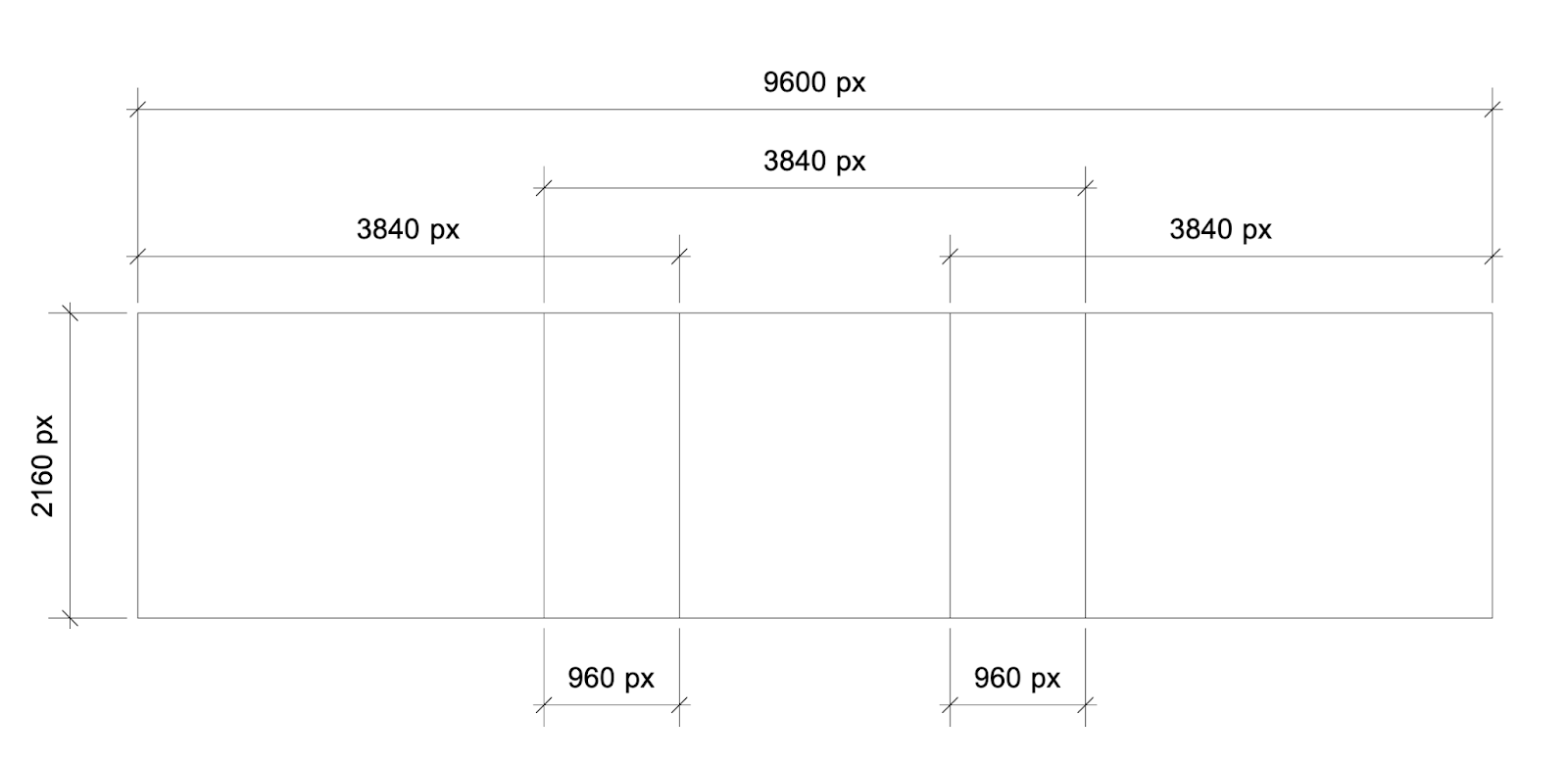
Below is an FFMPEG script that will take your source media at 9600 wide x 2160 high and split it into the 3 discrete projector outputs, including a 25% 960px overlap. It will not change the duration or change the quality provided that the source is Apple Pro Res 422. If there is any junk in the original encode, FFMPEG will inherit that junk “garbage in, garbage out” (i.e., non-square pixel aspect ratio, naughty frame rate, etc).
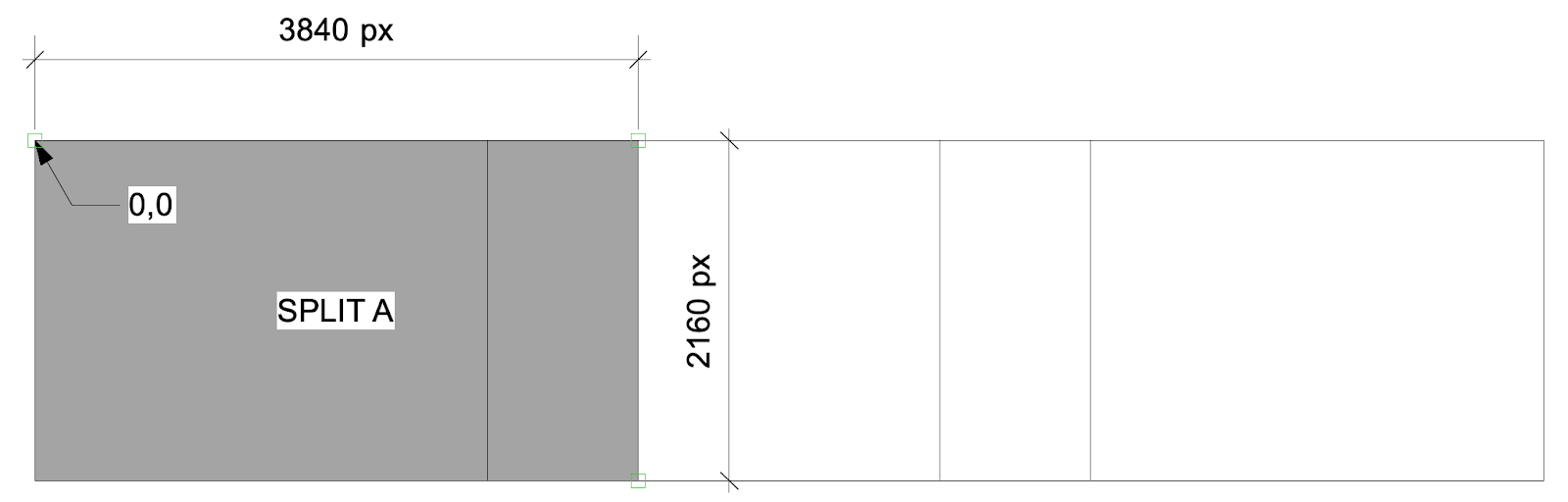
ffmpeg -i /Volumes/filepath/source9600x2160.mov -filter:v "crop=3840:2160:0:0"
-c:v prores_ks -profile:v 3 -pix_fmt yuv422p10le /Volumes/someotherfilepath/splitA.mov &&
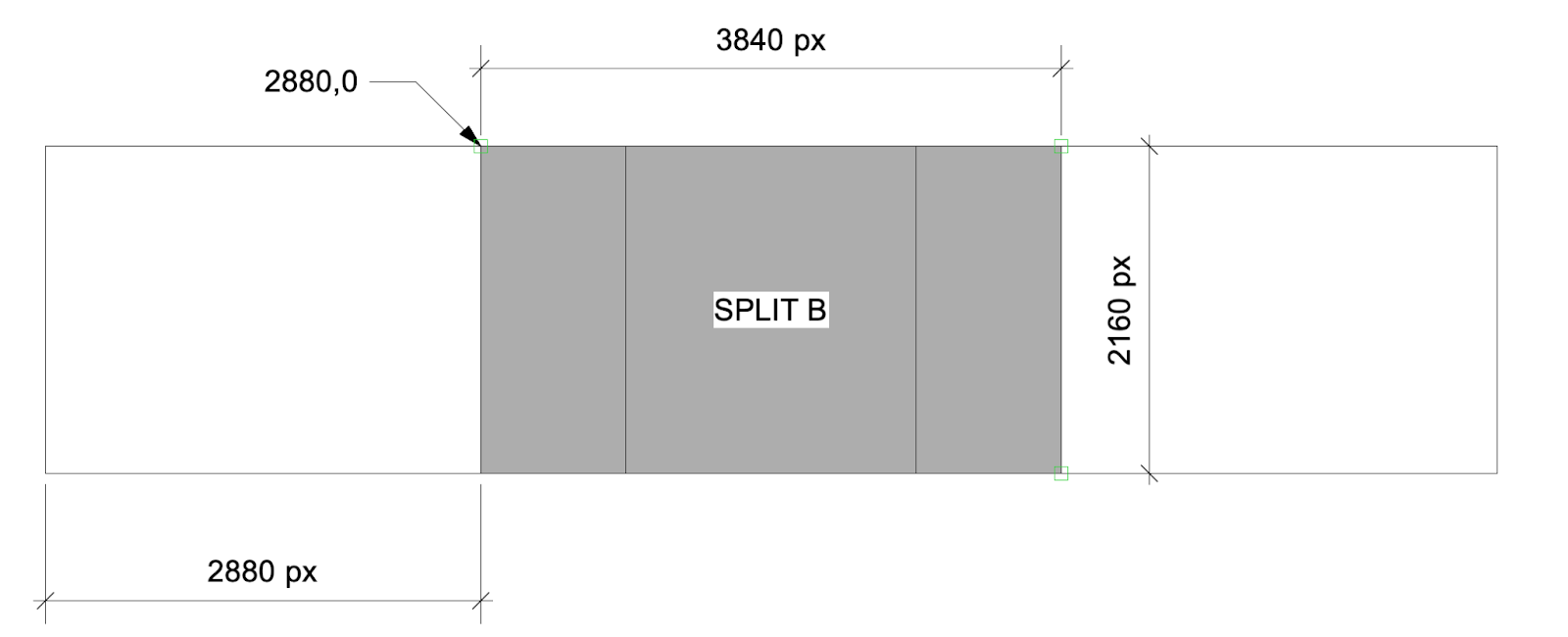
ffmpeg -i /Volumes/filepath/source9600x2160.mov -filter:v "crop=3840:2160:2880:0"
-c:v prores_ks -profile:v 3 -pix_fmt yuv422p10le /Volumes/someotherfilepath/splitB.mov &&
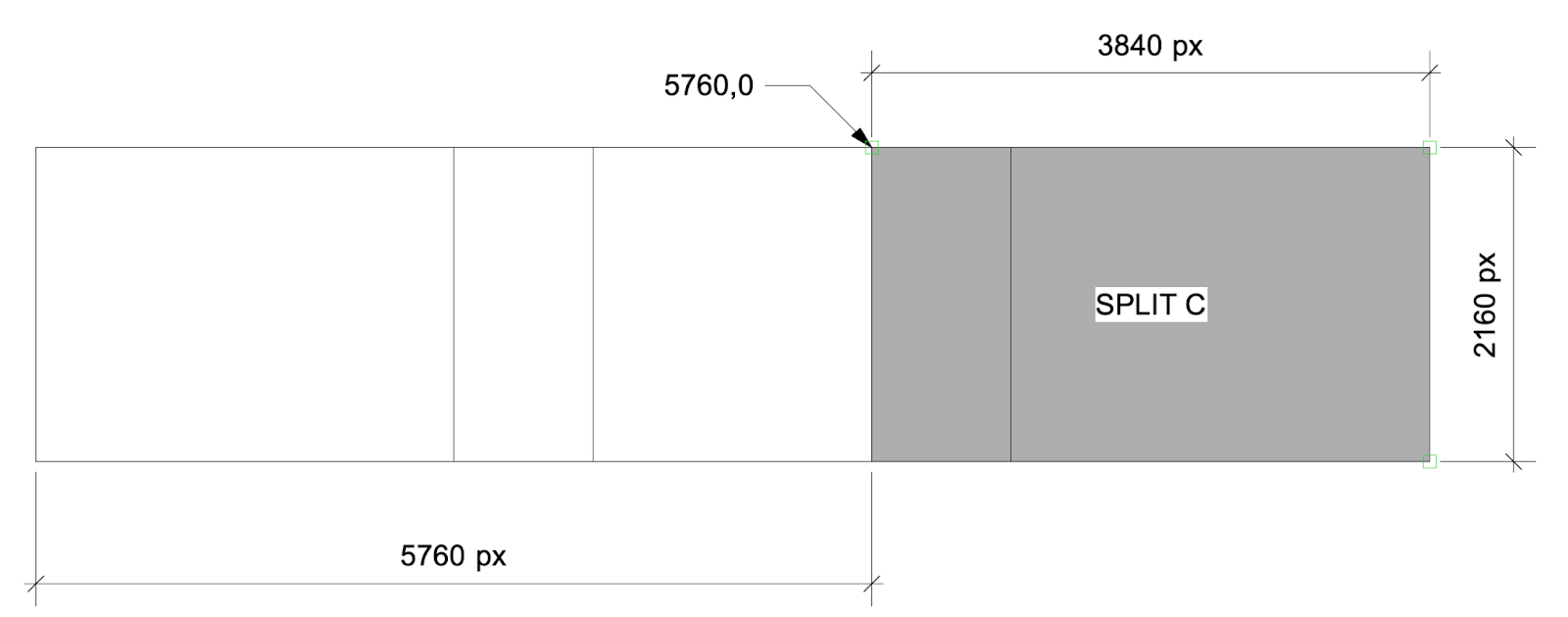
ffmpeg -i /Volumes/filepath/source9600x2160.mov -filter:v "crop=3840:2160:5760:0"
-c:v prores_ks -profile:v 3 -pix_fmt yuv422p10le /Volumes/someotherfilepath/splitC.mov
To explain the script, the crop variable has four values – the first is the cropped width, the second is the cropped height, the third is the horizontal position of the top-left pixel of that crop, and the fourth is the vertical position of the top-left pixel of that crop. So for split B (/Volumes/someotherfilepath/splitB.mov), the output is 3840x2160, and we’re cropping from the original canvas where our top left pixel start is at pixel 2880 across and pixel 0 at the top. The diagrams over the next few pages illustrate how this works.
You can steal this script and use a spreadsheet with formulas so that you can change dimensions, the crops, the number of tiles, the source file location and name, and the exported file location and name.
If you get good with this, you’re worth your day-rate and more. Most production companies will use After Effects to run their splits because it can be automated – for super high resolution projects, this could take days! Even with a managed render farm.
Save everyone some time and do it on your tricked out laptop ✅