
Storage Troubleshooting
Hard Drive Slow?
Use BlackMagic Disk Speed Test to bench your read and write (r/w) speeds. This is a standalone application on Mac (app store and BMDD page), and can be downloaded as part of the Desktop Video package for Windows from BMDD.
Spinning disks (eg 5400 / 7200) outside of RAID configs are supposed to be 100 MB/s r/w (5400) or 120 MB/s (7200). If you have a drive that is speed testing slower than this - it is likely time for a new drive. Hope you have everything backed up!
If you have any kind of drive that takes forever to mount, but then runs fine once mounted - you’re probably using a file system that doesn’t have a cached index the drive (eg ExFat). While this directory structure is universally accessible, this is a major shortfall. and alarming if you didn't expect to wait.
If you have an SSD that is very slow, but used to be fast, there are three possible reasons that you should check before you give up on it.
- External / Under-spec cable (eg using a USB2 cable for some reason, or a USBC cable that doesn’t use full bandwidth. Using a Thunderbolt 3 or greater cable will always work at full speed.)
- External / Under-spec bus (eg a bus that is rated as USB3, but it doesn’t have the right power driving the external drive).
- Internal & External / if speeds are approx 5 MB/s it’s likely that the active garbage collection (“trim”) needs to be repaired. A reformat will not fix this. The solve for this is to plug the drive into a computer, turn the computer on and leave it in BIOS, wait a day, surprise, your drive speed has been restored. If you’re like me and don’t own a (spare) PC (that you can afford to not use), I bet one of your clients has a NUC on a shelf somewhere…! I can’t believe this is a real problem and I can’t believe how dumb the real solution is. Thanks to Matt R. for reminding me of this one.
|
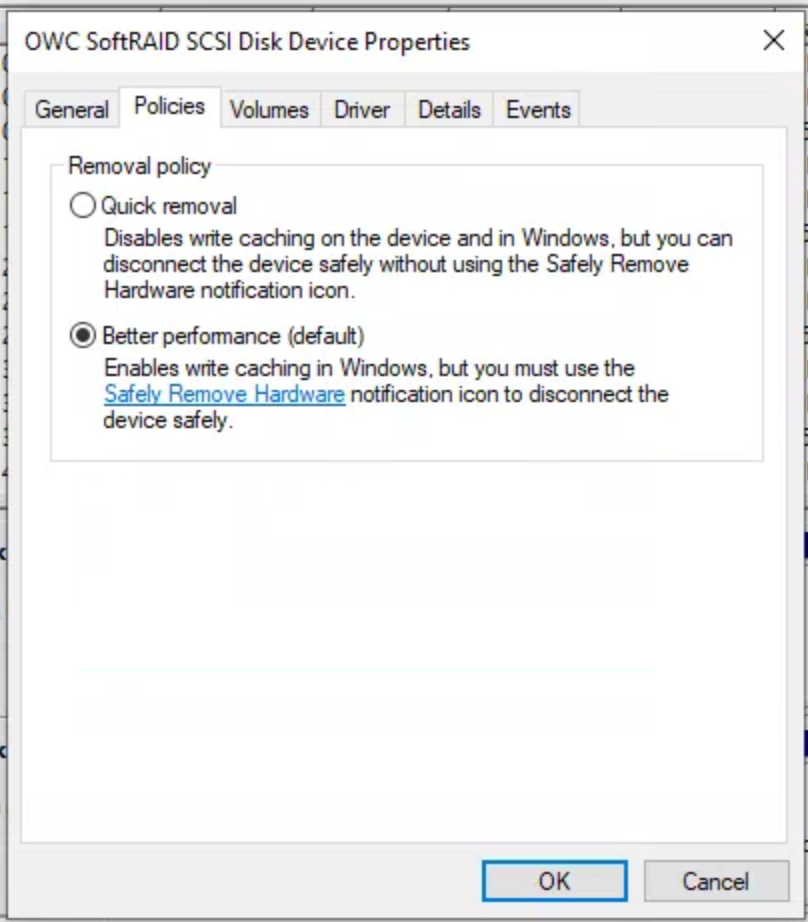
On Windows machines, new hard drives are automatically configured for “fast eject” - meaning they are capable of the unplug of a drive rather than a manual specific eject (not recommended, you should always manually eject). For most drives, this doesn’t effect speeds, but for some external drives that are specially configured, you need to manually configure the drive for “performance” instead of “fast eject.”
How to:
|
 |
No comments to display
No comments to display