
Mac OS Specific Hot Tips
Stuck Application Windows
Do you have a window that you can’t make full screen because the top of the window is hidden in a nebular black hole between displays? This happens fairly regularly in Premiere. Solution: Hover over any corner until your mouse becomes the resize icon, hold option and then double click. Congratulations, you’ve got your window back and you can bend it to your will.
Wireless Keyboard Chaos
Keyboard not working? “Forget this device” in system prefs, then restart. Toggle the keyboard on and off, and then hold the Command key. You can re-pair it (pun intended).
Computer Not Responding
First try to alternate the following hotkeys in rapid succession ⌘+Tab ⌘+Q. If that doesn’t work, hold down ⌘+Option+Esc for Force Quit. If that doesn’t work, hold the power button down.
System Scheduling
System scheduler is no longer working because Apple got rid of it, and you have an installation that would benefit from an on/off schedule or an auto restart? You gotta do it in command line now. It’s actually pretty easy: See here.
Safe Mode
So, you think you installed something naughty that’s really screwing up your computer? Boot up your computer holding the shift key, this will disable all third party things and you’ll be able to remove things as needed.
Recovery Mode
So, your computer is really struggling and you need to hit up disk utility and/or you need to reformat? Turn on your computer and immediately press ⌘+R fo recovery mode.
Reformatting to APFS
In disk utility, select view and choose “View All Devices” then select the drive’s highest hierarchical item (typically the brand’s enclosure), then hit erase, then hit scheme GUID, then select APFS as the format.
All Computer Characters in Sort Order
On Mac OS, file name sorting isn't case sensitive. Here's a breakdown of sort order from Engadget.
Migration Assistant Fastest Method (Thunderbolt, Baby!)
- Make sure the destination Mac has a higher OS than the previous Mac.
- If the destination Mac is new, you can skip this:
- If you're resetting the destination Mac, make sure you have access to the Apple ID associated with it so that when the computer resets you don't get stuck in recovery lock!
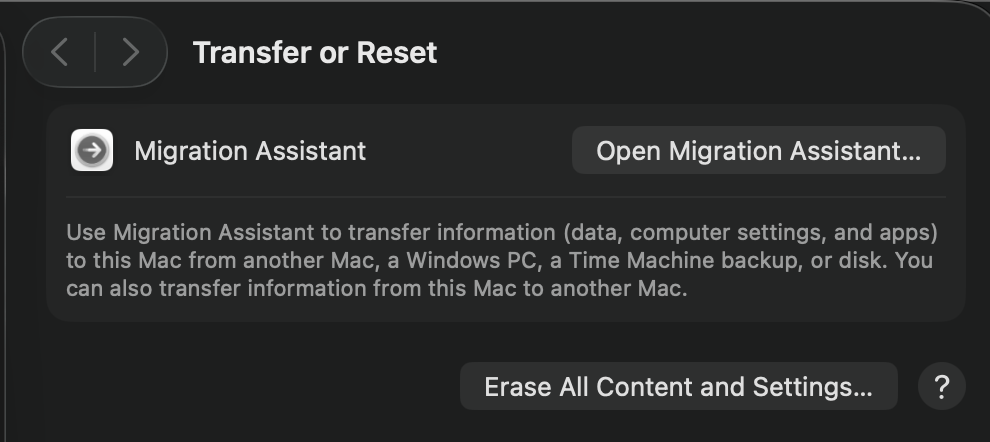
- Reset the mac using Transfer or Reset.
- On the destination Mac, you want to be "fresh outta the box mode" - running Migration assistant after setting up an might not work. Don't fear though, if you've already done that, see Step 2.
- On the older mac, unplug all ethernet and remove any saved WiFi passwords – this will prevent it from auto-connecting to Wi-Fi during the transfer.
- On the newer mac, when it asks you how you plan to connect to the internet, there's an option for "I don't plan to connect to the internet" - select that one.
- Plug the old mac into the new mac via Thunderbolt
- On the newer mac select the I want to transfer from an existing Mac
- On the older mac, launch migration assistant, and select transfer to a new Mac
- Follow the instructions
- Thunderbolt should be seen as only connection option
- ZIPPY
No comments to display
No comments to display