
Mac OS Hotkeys & Shortcuts
This section is all about non-listed or non-obvious hotkeys for software. These keys lean Mac OS, but many work on Windows if you substitute Command for Alt.
In creative applications “shift” is generally used as a modifier key to increase the units of an action. In After Effects, for example, shift is a modifier x10 – so if you use the hotkey to advance one frame, and hold shift, it advances 10 frames.
|
Symbols can be found in file→emoji and symbols work within most applications.
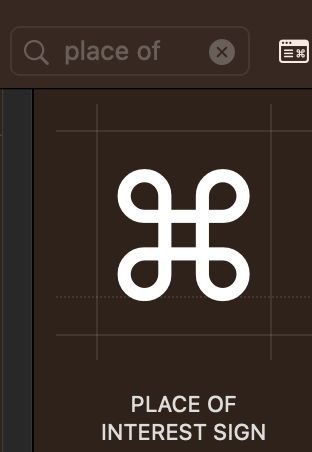
The command graphic is called “Place of Interest Sign” (and not “Command”) lol.
Point being, if you're looking to write out a bunch of hotkeys, you gotta type "Place of Interest Sign" in the character viewer. |
|
Mac OS System Wide
| ⌘+, | This triggers preferences or settings in many applications |
| ⌘+C / ⌘+V | Copy / Paste |
| ⌘+Shift+V | Often used as “paste values” rather than paste items. |
| ⌘+S | Save |
| ⌘+Shift-S | Save As |
| ⌘+A | Select All |
| ⌘+I | Get Info |
| ⌘+Option+I | Combined Info of all selected files (allows you to quickly tally up file sizes without manual entry!) |
Mac OS Finder & System Preferences
| Cntrl+⌘+Spacebar | Will open character viewer (on full keyboards, FN does this) |
| ⌘+fn+F1 | This will mirror your displays. This is very helpful when you have a dead display and need to access your files on an external monitor and it’s stuck on “extend.” |
| ⌘+F1 | Toggles mirroring on and off. |
| ⌘+Shift- | Show hidden files (system wide, not just the active directory) |
| Opt+☼ | (Brighten or dim keys, usually F1/F2) will take you to Display system preferences |
| Opt+(any audio key) | (Usually F10/F11/F12) will take you to Sound system preferences |
| Opt+Right Click+Click File | Gives you more contextual options, copy file path is a big one that I can’t believe I’m just learning in 2024. I’ve been dragging files into terminal to get the string for years. |
No comments to display
No comments to display